
How can a customer book a meeting with you by themselves, with no back and forth?
| Intagya ERP
The customer answers your offer: "Great, let's meet." You write back: "Sunday at 11?" They have a meeting then and suggest Tuesday. On Tuesday you are visiting another customer. Three more messages and two days later, the customer is excited about something else.
The customer is not the problem. Both of you are looking for a free time by message, and each of you only sees your own calendar.
What is a meeting booking link?
A link of your own, such as intagya.pro/invite/mahmoud, that you send once. The customer opens it, sees only your free days and hours, picks one, and the meeting lands in your calendar while the confirmation and the meeting link reach them at the same moment.
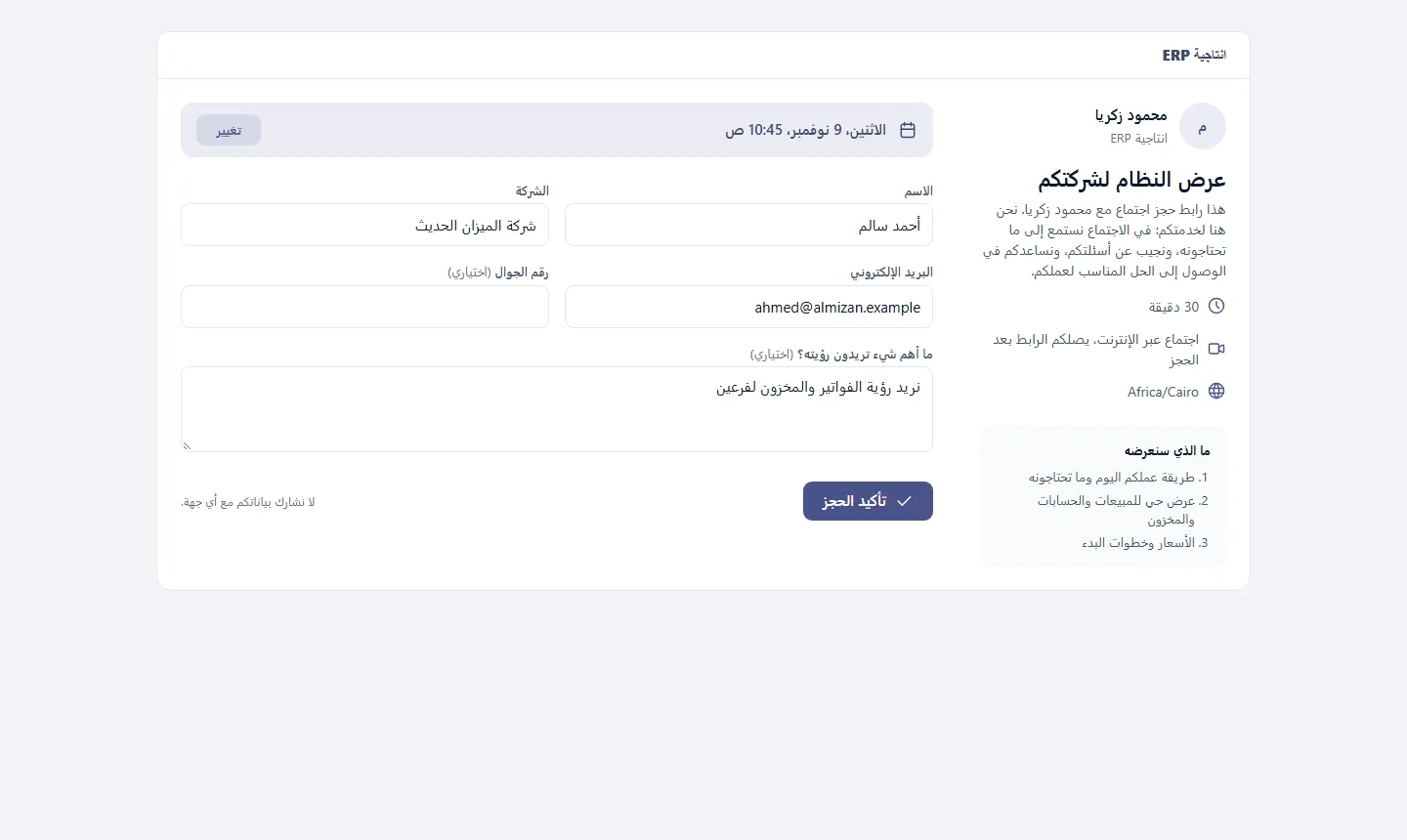
The customer never sees your calendar or the names of your meetings. They only see that Sunday at 10 is free and that 11 is not there.
How does the link know I am busy?
From your calendar in the system, not from a table you keep by hand. Any meeting shown as busy disappears from the booking page, together with the gap you choose between two meetings, so you do not run from one meeting into the next.
Calls too. When you schedule a call activity on a customer, the system asks for its hour, so it shows in the calendar and its time is blocked. Approved time off and public holidays close the whole day.
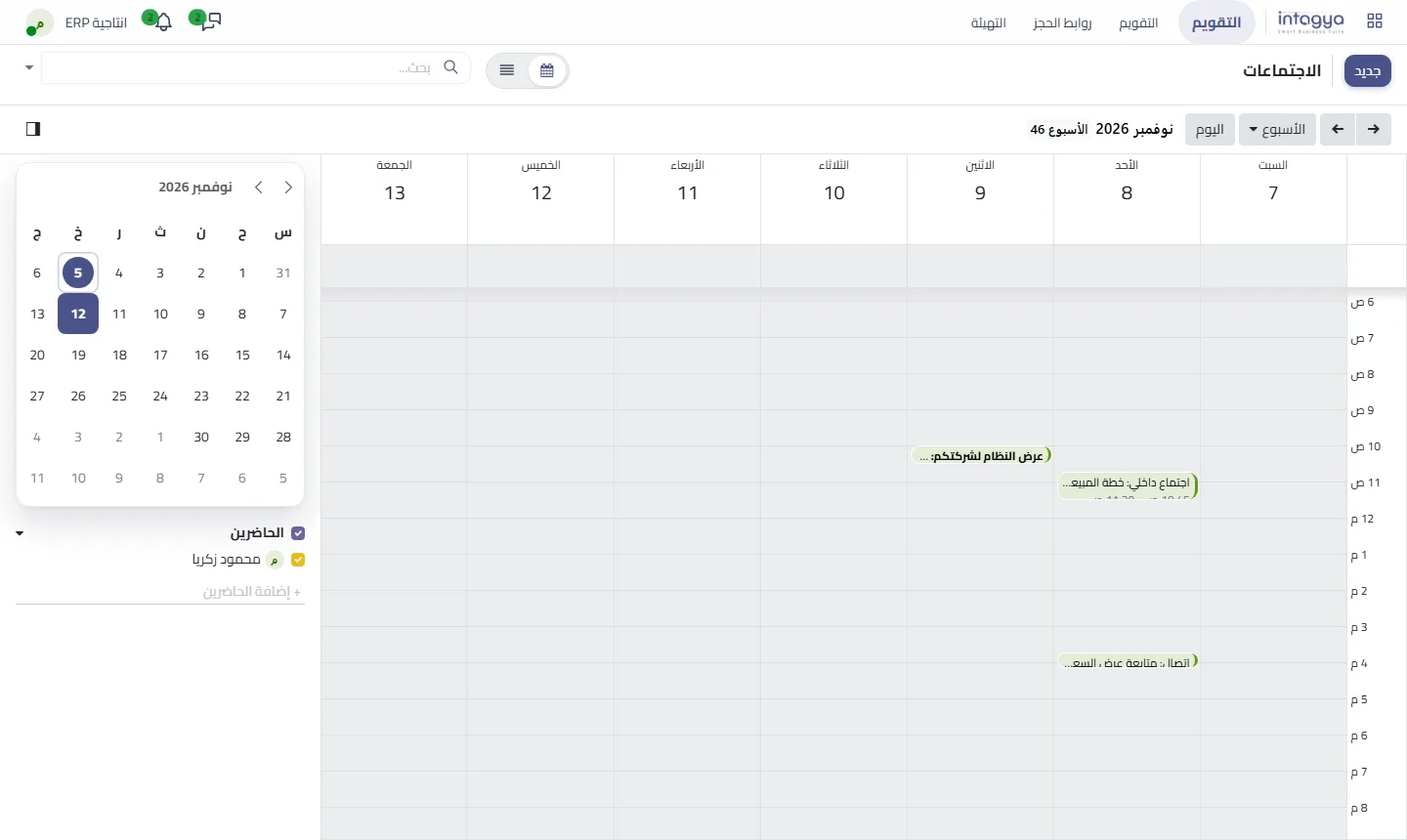
Plain tasks such as "send the quotation" block nothing, because they only have a date. That is on purpose: if every task blocked a whole day, the customer would never find a time.
What happens after the customer books?
The customer sees "Your meeting is booked" with the time, the link to join and a button to add it to their own calendar. You get a notification, and both of you get a reminder one hour before.
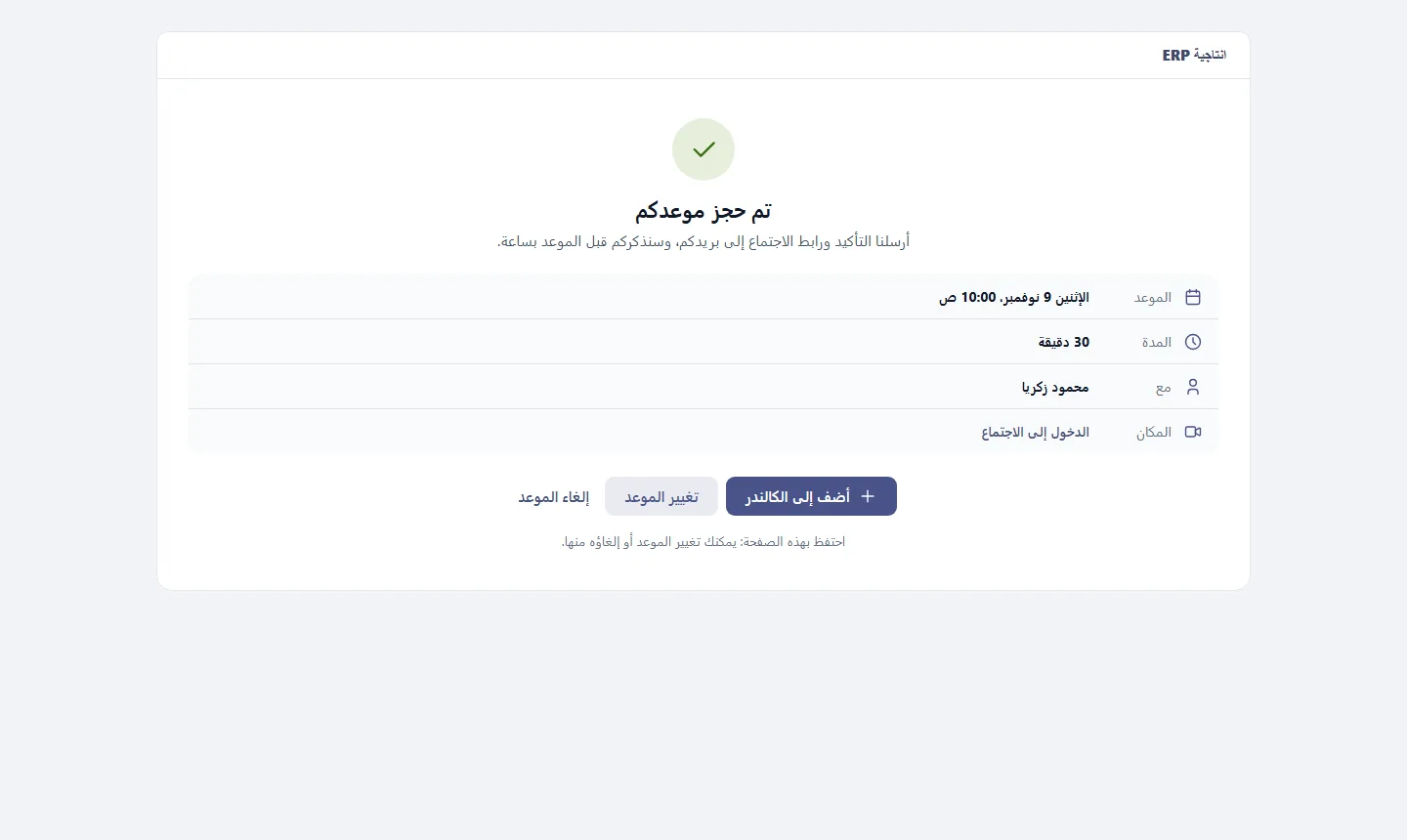
If something changes on their side, they do not need to write to you. From the same page they change or cancel the meeting, and the old time is free again at once.
Do I send the same link to every customer?
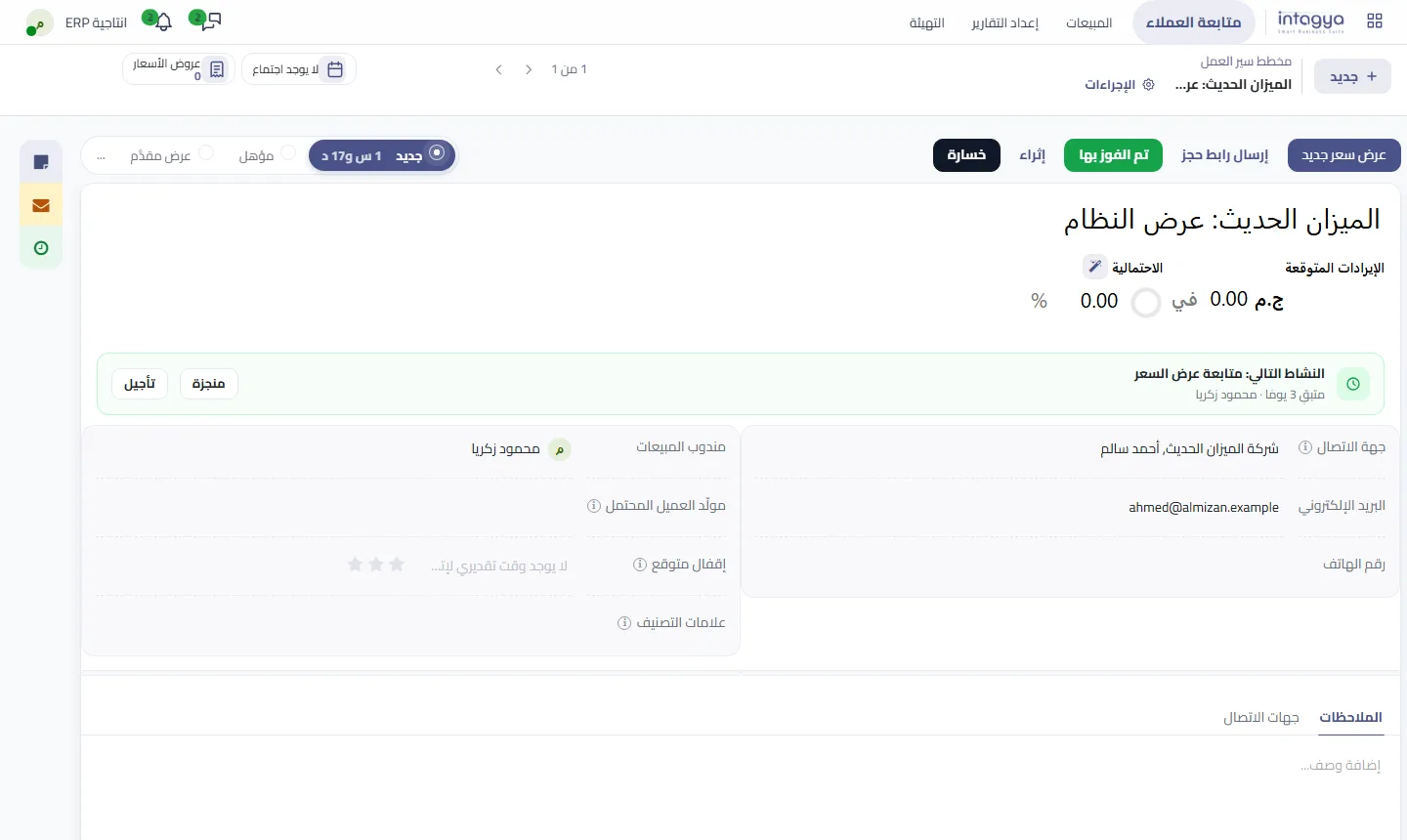
You can: put it in your e-mail signature or a WhatsApp message. My advice is to send it from the opportunity itself: the Send booking link button opens a ready e-mail with a link for that customer only. Their name and e-mail are already written, and the meeting is filed on the opportunity, so the sales manager sees it moved without asking anyone.
How do I start?
Open Calendar, then Booking links, then My links. Choose the meeting length, the days and the hours, and write two lines about the meeting. Five minutes, and the steps with pictures are in the user guide.
Tomorrow morning, when a customer asks for a meeting, send the link instead of suggesting a time.
Frequently asked questions
Does the customer see my other meetings?
No. Only the free times, with no name or detail.
What if two customers try to book the same time?
The first one gets it; the second sees that the time was just taken and picks another.
Are the times in the customer's time zone?
Times show in the employee's time zone, and the page says which one, so a customer in another country is not confused.
Does the meeting need an outside program?
No. The online meeting runs inside the system, and its link reaches the customer in the confirmation.
Is this your business?
Want to see IntagyaERP on your own workflow?
Book a demo, tell us how your business runs, and watch the system handle a real scenario from your company.
Book a demo