
How do I see my sales and stock figures the moment I open the app?
| Intagya ERP
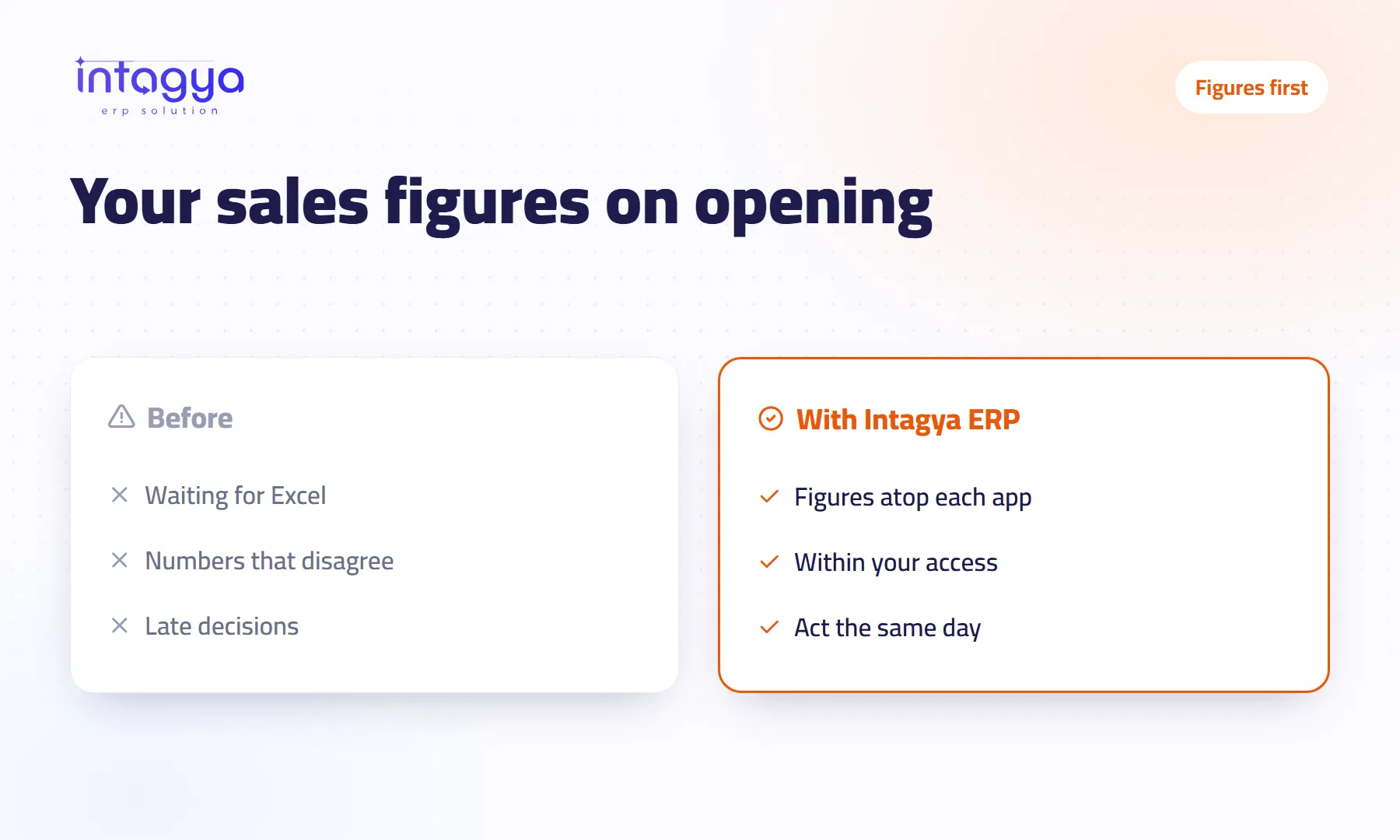
Intagya ERP shows a strip of key figures at the top of each main app's list: Sales, Purchases, Inventory, CRM, Manufacturing and Projects. Open the app and the numbers are there, no separate report. They are computed with the user's own access rights, and the strip appears only in the apps your workspace has.
Why do business owners see their numbers so late?
Because the numbers pass through someone before they reach you. The owner of a distribution company asks on Sunday morning how much they sold this month. The accountant says he will send it after lunch. After lunch an Excel file arrives, and its sales figure does not match the one the sales manager quoted in the meeting.
The accountant is not the problem. The problem is that a simple question needs a report.
What is the figures strip at the top of each app?
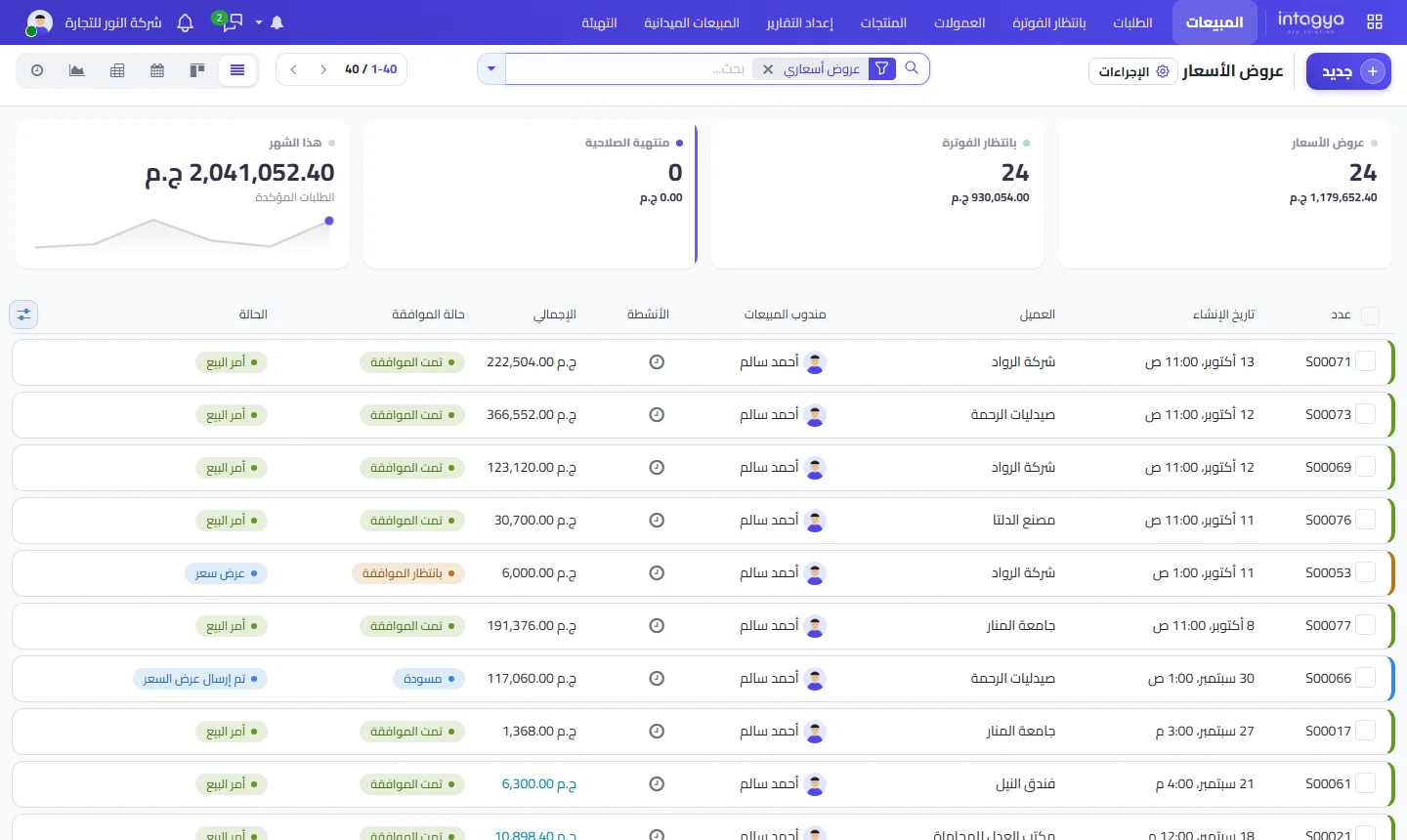
A row of small cards above the app's list showing its key numbers. In Sales you see the number and value of quotations, orders waiting to be invoiced, expired quotations, and confirmed orders this month with a small trend line. The detailed list sits right underneath, so if a number raises a question, the answer is a few rows down.
Which apps show the figures strip?
Six of them: Sales, Purchases, Inventory, CRM, Manufacturing and Projects. It appears only where the app is installed in your workspace. A restaurant that does not use Manufacturing will not see empty cards for it.
Does every employee see all the company figures?
No. Figures are computed with the user's own access rights. A salesperson sees what his rights allow; the manager sees the wider picture. That matters more than it sounds. Plenty of owners share no numbers at all for fear of exposing everything, and the team ends up working without knowing where it stands.
How do these figures help me decide faster?
Almost every card points to an action. Say you open Sales and see 24 orders waiting to be invoiced. That is money you have not asked customers for yet. You call the accountant and ask for them today, not at month end.
Expired quotations? Customers waiting for a call that never came. A monthly line heading down? Ask the sales manager today, not at the monthly review.
Do not expect the strip to explain everything. It tells you where to look, not why it happened. For the why, open the list and talk to people.
Give the first minute of your day to Sales and Inventory only. Read the strip before email and before any meeting, and write down one question for the team.
Do I still need a separate dashboard?
The strip answers each app's own question. For the whole company, Intagya ERP has a smart dashboard with revenue, purchases and expenses, net profit and unpaid invoices, plus a tab that shows where work is stuck. Use both: the dashboard once a week, the strip every day.
Where do I start tomorrow morning?
Open Sales and read the four cards. Pick the one number that bothers you, usually to invoice, and get it dealt with before the end of the day. Do that for a week, then add Inventory. If you do not have an account yet, the trial is free for 14 days.
Try Intagya ERP free for 14 days
FAQ
Do I have to set up the figures strip myself?
No. It appears above the lists of the apps installed in your workspace.
Where do the figures come from?
They are computed from the system's own data when you open the list, within your access rights.
Does the strip appear in Accounting?
It appears in Sales, Purchases, Inventory, CRM, Manufacturing and Projects. For the financial view, use the smart dashboard and the financial reports.
Is this your business?
Want to see IntagyaERP on your own workflow?
Book a demo, tell us how your business runs, and watch the system handle a real scenario from your company.
Book a demo