
How do I run a repair shop and know where every device stands?
| Intagya ERP
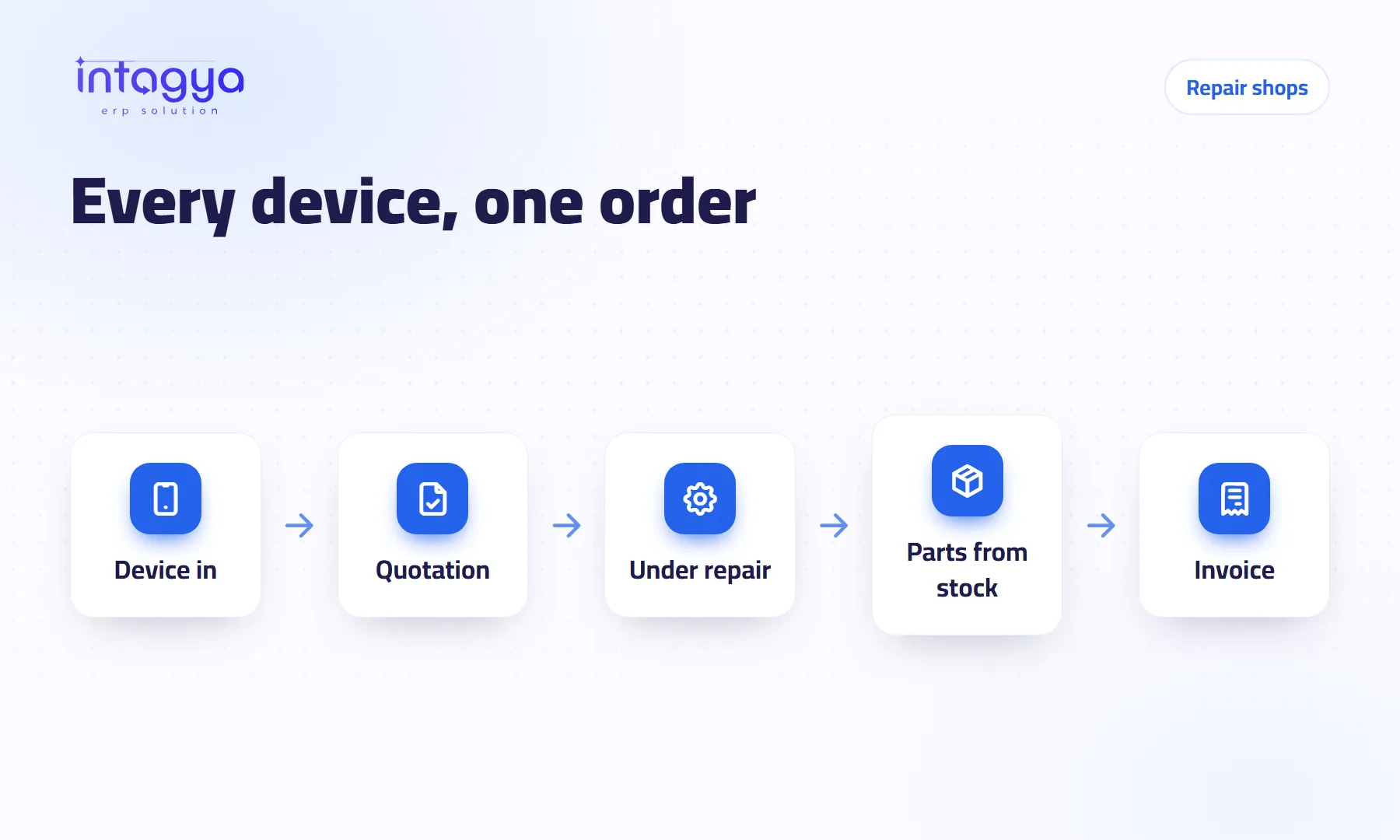
You know where every device stands when each one gets a single repair order the moment it comes in: customer, item, due date and technician. Orders sit on a board with one column per status, late ones in red. Spare parts are added to the order and taken from stock, and the quotation and then the invoice come from the same order, so no part goes unbilled and no device is forgotten.
A screen repair shop has three technicians and a long shelf of devices. Each device has a sticky note with its owner's name. A customer calls about their screen, so the employee stands at the shelf reading notes one by one, then says, “We will call you back.” Nobody does.
What is the real problem with running a repair shop on paper?
Not the paper itself. The problem is that the information is scattered: the device on the shelf, the fault in the technician's head, the part in the store room, the price in the front desk notebook. Nobody sees the whole picture.
And you lose on three fronts: a customer annoyed by the wait, a spare part fitted and never charged, a device ready for a week whose owner was never told.
What should I record when a customer drops off a device?
Open a repair order right then, with the customer standing in front of you. The order number is given automatically, so write it on the device and on the customer's receipt.
- Customer name.
- The item to repair, described well enough to tell it from a similar one.
- Expected delivery date.
- The technician in charge.
- Whether it is under warranty.
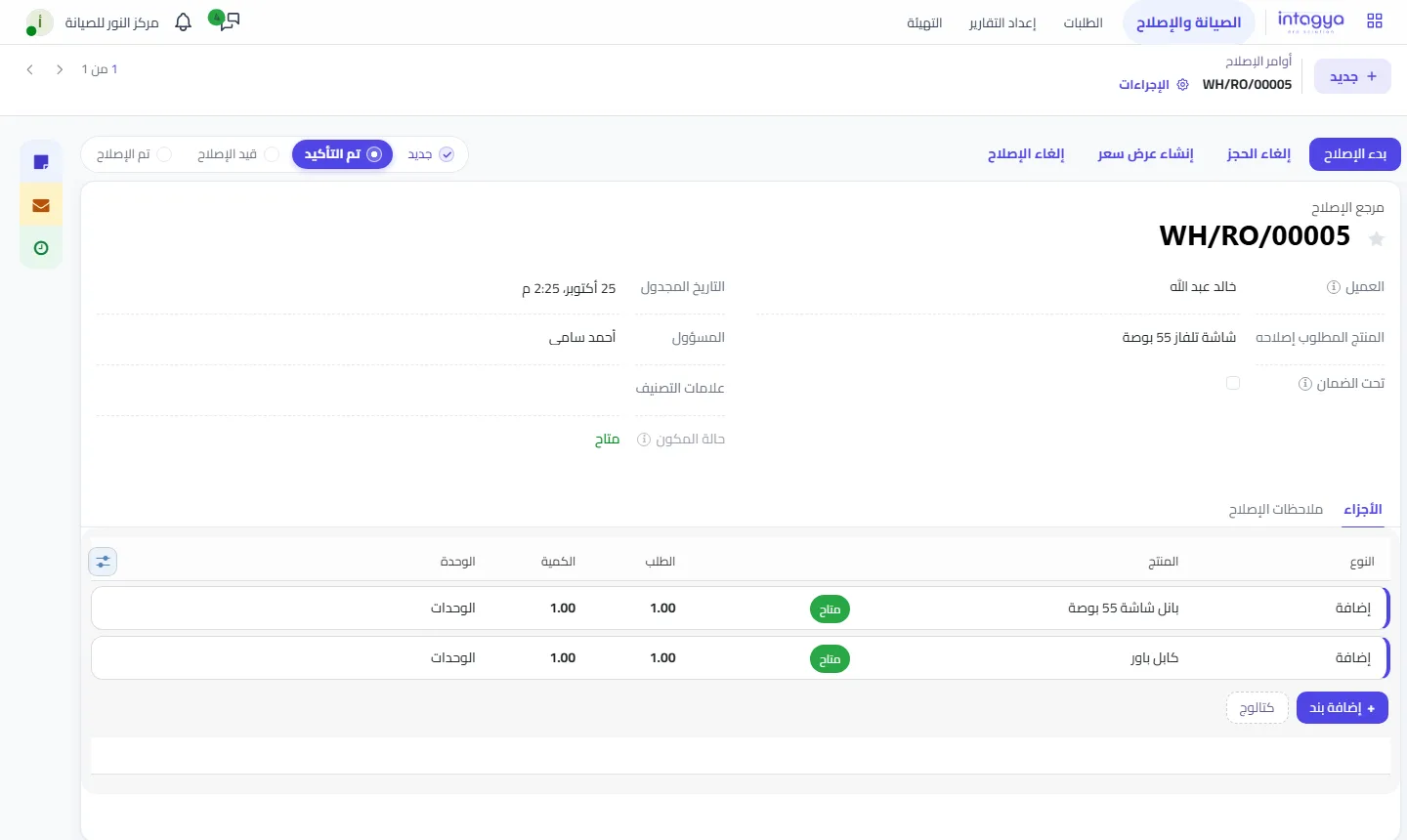
Never accept a device without an order number. The minute you save at the counter costs you ten when the customer calls.
How do I know each device's status without asking the technicians?
From the repair board. It has one column per status: New, Confirmed, Under Repair, Repaired. Each card shows the customer, the item and the due date, which turns red when late.
Cards are not dragged between columns by hand. The status moves with the order's own buttons, such as Start Repair, and that is on purpose: every status change reserves and consumes parts as it should.
Above the board sits a figures strip: orders waiting, under repair, late, and repaired this month. One look in the morning tells you where the pressure is.
How do I make sure every spare part is charged to the customer?
Add the part to the repair order itself, in the Parts tab. You see whether it is available in stock, and when the repair is done it is taken from stock automatically.
That lines up three things that never used to match: what the technician fitted, what left the store room, and what the customer paid for.
Make it a rule with no exceptions. The technician who grabs a part from the shelf and will “record it later” is the biggest cause of stock gaps in repair shops.
How do I give the customer a price before starting the repair?
After the diagnosis, click Create Quotation on the order. The quote is built from the recorded parts and work, so you send it to the customer and wait for their yes before opening the device further.
If the device is under warranty, the box ticked on the order reminds everyone not to charge for what the warranty covers.
What happens once the repair is finished?
The order moves to Repaired and the invoice is issued from it, with parts and labour. If you also sell accessories or devices, sales, stock and invoicing are in the same system, so the shop needs no second program.
How does Intagya ERP help a repair shop?
When you pick the Repair and Maintenance sector in Intagya ERP, the Repair and Maintenance app opens straight on the status board with the figures strip above it, and orders are linked to stock and invoicing. You do not need a long setup before taking in your first device.
Tomorrow, before you open, enter every device on the shelf as a repair order with its real status. It will take an hour. When the first customer calls, you will answer in ten seconds.
FAQ
Can I drag cards between columns?
No. The status changes from the repair order's buttons, so parts are reserved and taken from stock correctly.
Can I send a quote before repairing?
Yes, with the Create Quotation button on the order; it is built from the recorded parts and work.
Are spare parts taken from stock automatically?
Yes, parts added to the order leave stock when the repair is completed.
Is this your business?
Want to see IntagyaERP on your own workflow?
Book a demo, tell us how your business runs, and watch the system handle a real scenario from your company.
Book a demo