
How do I read the chart of accounts and see where every amount goes?
| Intagya ERP
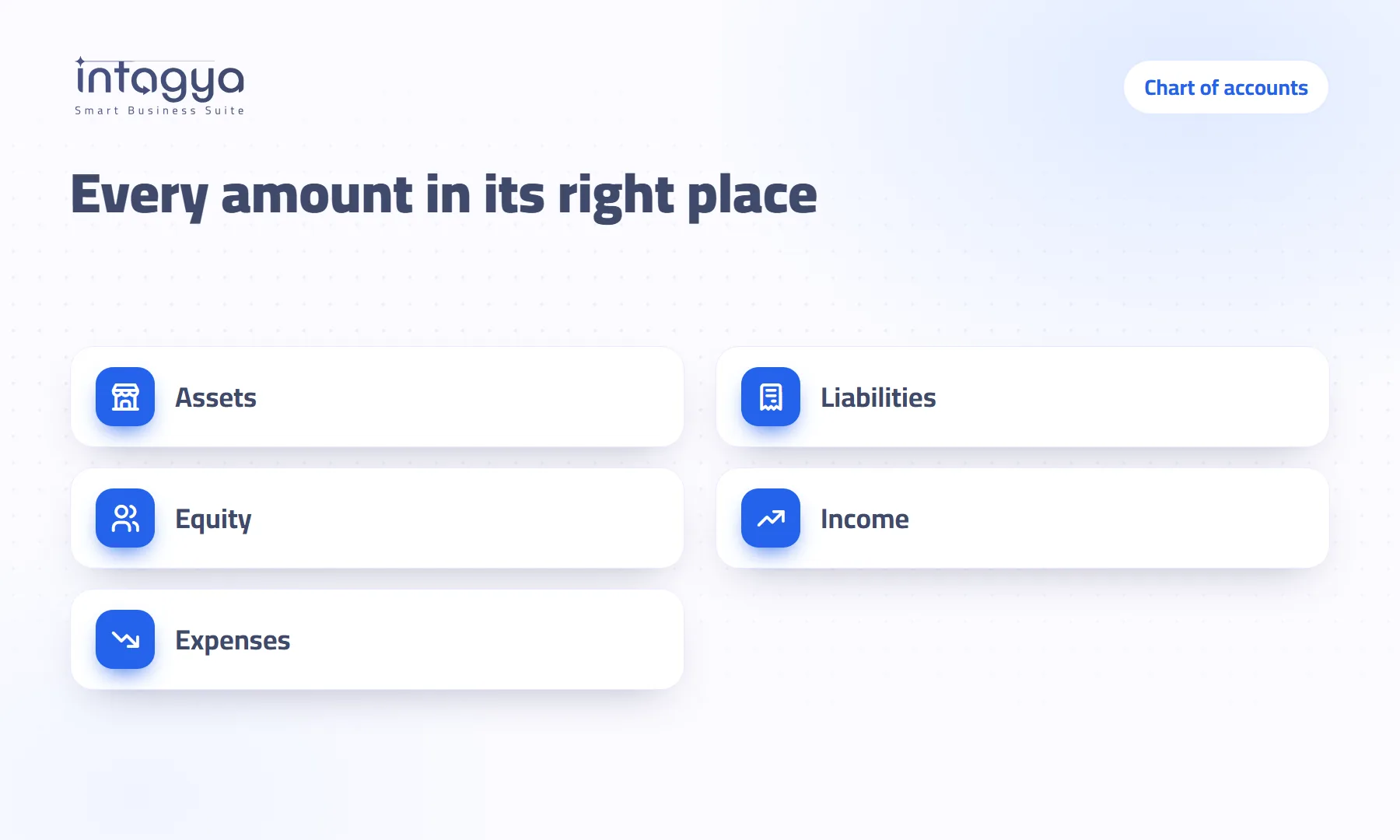
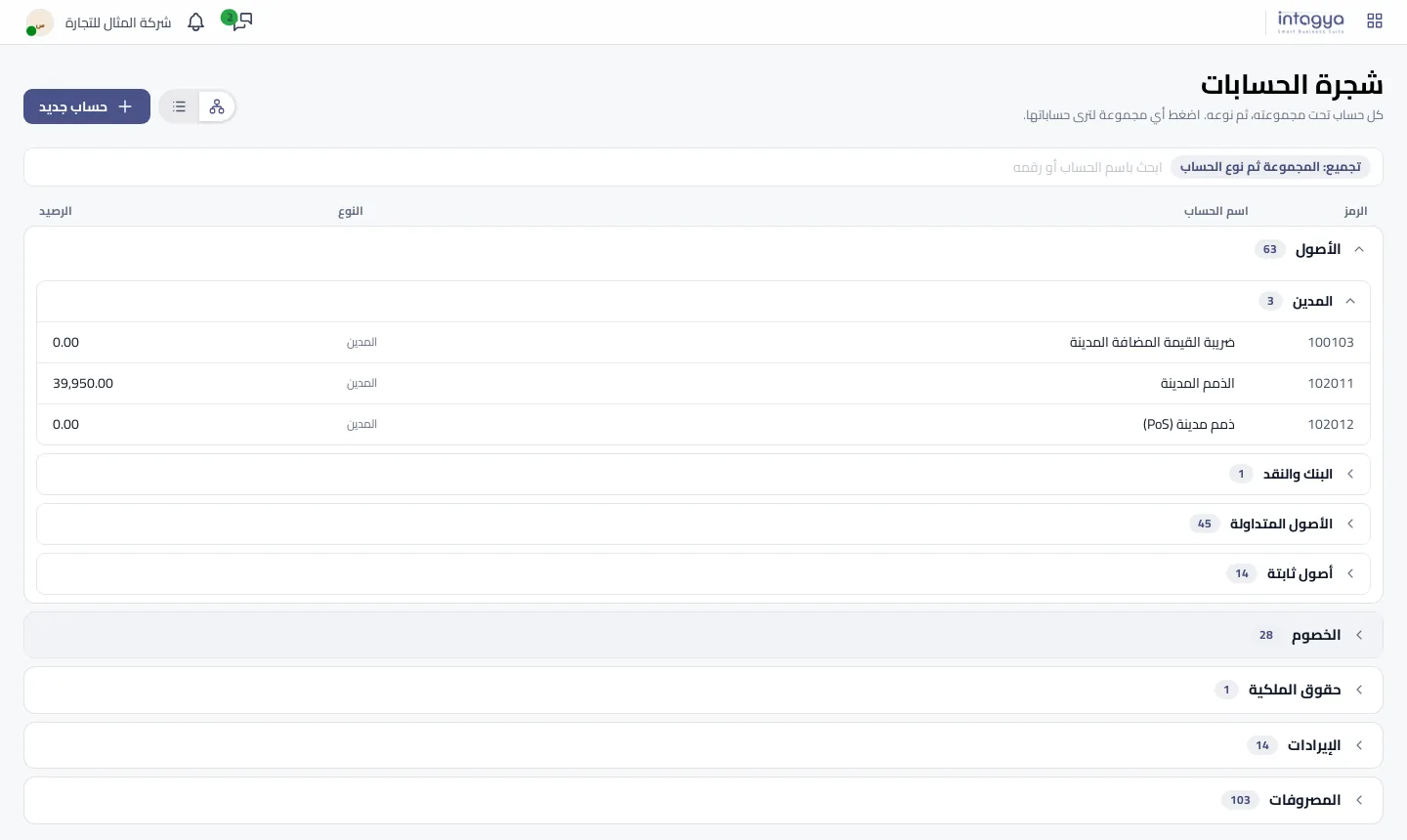
The chart of accounts is the map of every place your company's money can go. In Intagya ERP you open it from the Accounting menu and it shows in balance sheet order: assets, then liabilities, equity, income and expenses. Inside each group comes the account type, then the accounts with code and ledger balance. You can search any account by name or code.
The owner of a distribution company asked his accountant where last month's forty thousand payment was recorded. The accountant opened a list of two hundred accounts sorted by code and scrolled down line by line. He found it after a few minutes. The owner did not understand the screen and did not ask again.
That is the real problem: the numbers are there, but the person making decisions cannot read them alone.
What is a chart of accounts and why does my company need one?
The chart of accounts is the full list of accounts where every money movement in the company is recorded: bank, customers, vendors, sales, salaries, rent and so on. Every invoice, payment or entry ends up in at least two of them, one debit and one credit.
When the chart is clear, you know where each amount went without asking anyone. When it is a mess, every report built on it is open to doubt.
How are the accounts arranged in the tree?
In Intagya ERP the tree follows the balance sheet, top to bottom:
- Assets: what the company owns, such as bank, cash, receivables, stock and fixed assets.
- Liabilities: what the company owes others, such as vendors and taxes due.
- Equity: capital and retained profit.
- Income: what you earn from sales and services.
- Expenses: what you spend to operate, from salaries to electricity.
- Then Off balance, if your company has such accounts.
Inside each group there is a second level, the account type, such as receivable, bank and cash or current assets, then the accounts with code, name, type and balance. Each group and type shows how many accounts it holds, so you know its size before opening it.
How do I find where a specific amount went?
Start with the group you expect. A vendor payment? Look under liabilities. Shipping costs? Under expenses. Press the group to open it, then the type, then press the account row to open the account itself.
If you know part of the name or code, type it in the search box. Only matching accounts stay and their groups open by themselves. You do not need to remember where an account sits in the tree.
If you are unsure where a kind of expense is recorded, ask your accountant once and note the account code. After that, search by code.
Why should all the balances add up to zero?
Because every entry has a debit side and a credit side of the same amount. Add up all account balances, debit as plus and credit as minus, and balanced books give zero. In Intagya ERP the tree takes its balances from the ledger itself, and each company account appears once, so there is no hidden account and no balance counted twice.
In our view this is the first thing an auditor or a new partner needs to see. If the books do not balance, no report after that is worth reading.
When should I use the list instead of the tree?
The tree is for reading. When you need to edit many accounts at once, or import or export them, use the list. Two icons at the top switch between tree and list in one click. The list opens with no grouping and no filter, so you see every account in one table.
Should I add a new account for every expense?
No, and this is a common mistake. One owner wants the manager's car fuel in its own account, another wants an account per big customer. A year later the chart has three hundred accounts nobody can tell apart. Customers and vendors already have their own statements, and small details belong in the label or the analytic distribution, not in a new account.
When you really need one, an accounting manager presses New account at the top of the tree and fills in the code, name and type on an empty form.
Try this tomorrow: open the chart of accounts, search for your biggest expense and look at its balance. If the figure surprises you, you have your first question for your accountant.
Read the chart of accounts steps in the user guide
FAQ
Where is the chart of accounts in Intagya ERP?
In the Accounting app, under the Accounting menu, then Chart of accounts. It has a single entry.
Can I search by account code?
Yes. Type the code or part of the name in the search box; the matching accounts stay and their groups open.
Who can add a new account?
The New account button is for accounting managers and opens an empty account form.
Are the balances in the tree final or rough?
They are the ledger balances themselves, and they add up to zero when the books balance.
Is this your business?
Want to see IntagyaERP on your own workflow?
Book a demo, tell us how your business runs, and watch the system handle a real scenario from your company.
Book a demo