
How do I plan a new project before I start it?
| Intagya ERP
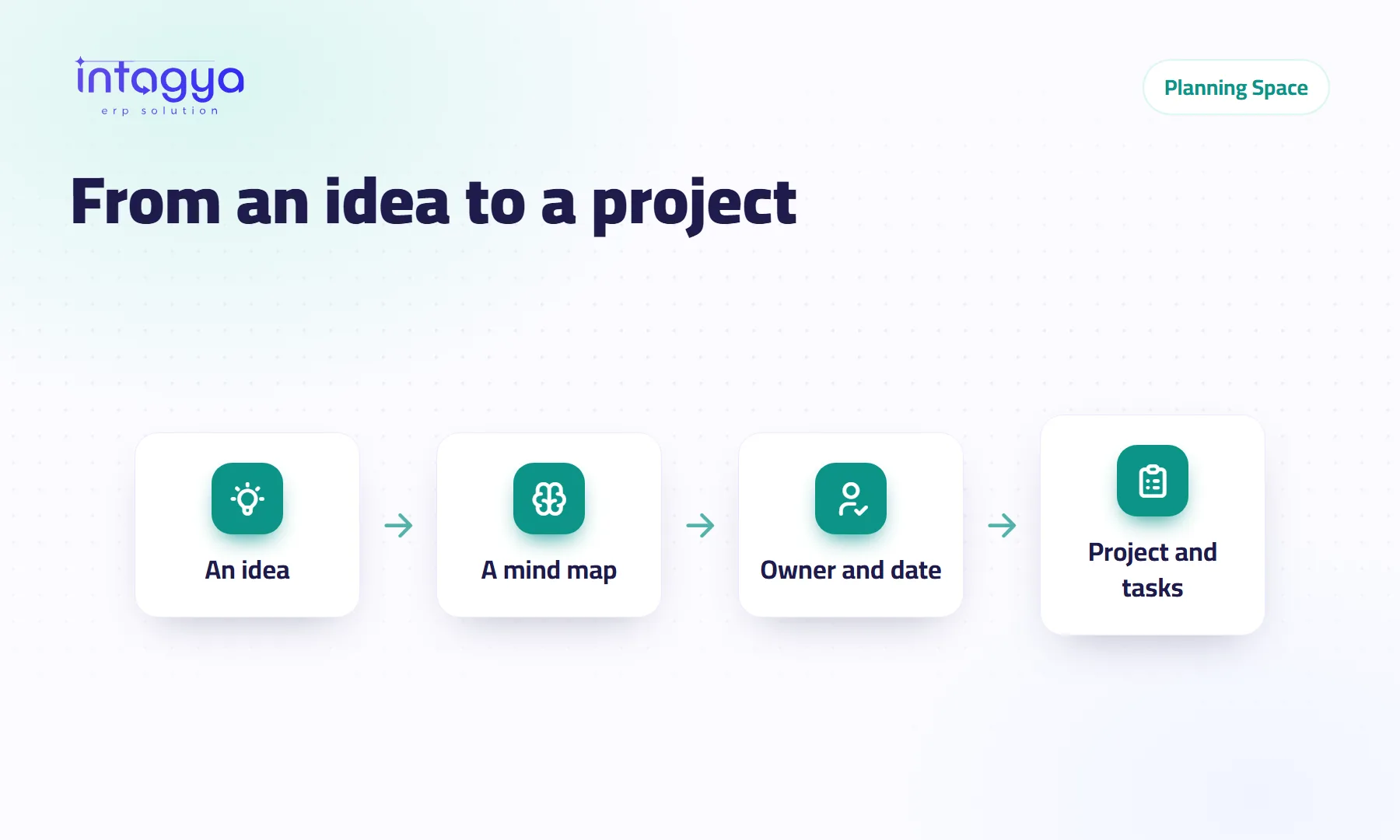
Plan it on a mind map before you open a single task. In the Planning Space app of Intagya ERP you put the project idea in the middle, draw the big steps around it and then their details, and give each step an owner and a deadline. When the picture is complete you press “Turn it into a project”, and the branches become tasks in the Projects app with their owners and dates.
In the Monday meeting the sales manager says: “We open a branch in the second city before the holidays.” Everyone agrees. Two weeks later he asks who looked for a shop. Nobody did. Each person thought someone else would.
The idea was fine. The plan just stayed a line in the meeting notes.
Why not just open the tasks right away?
Because a task list does not show you what you forgot. Write ten tasks in a long list and you only see those ten. A mind map puts the whole project on one page, so you notice that the “Hiring” branch is empty, or that “Licence” has no owner.
We have seen many projects slip because one step was never written down, not because the team was slow.
How do I draw the project as a mind map?
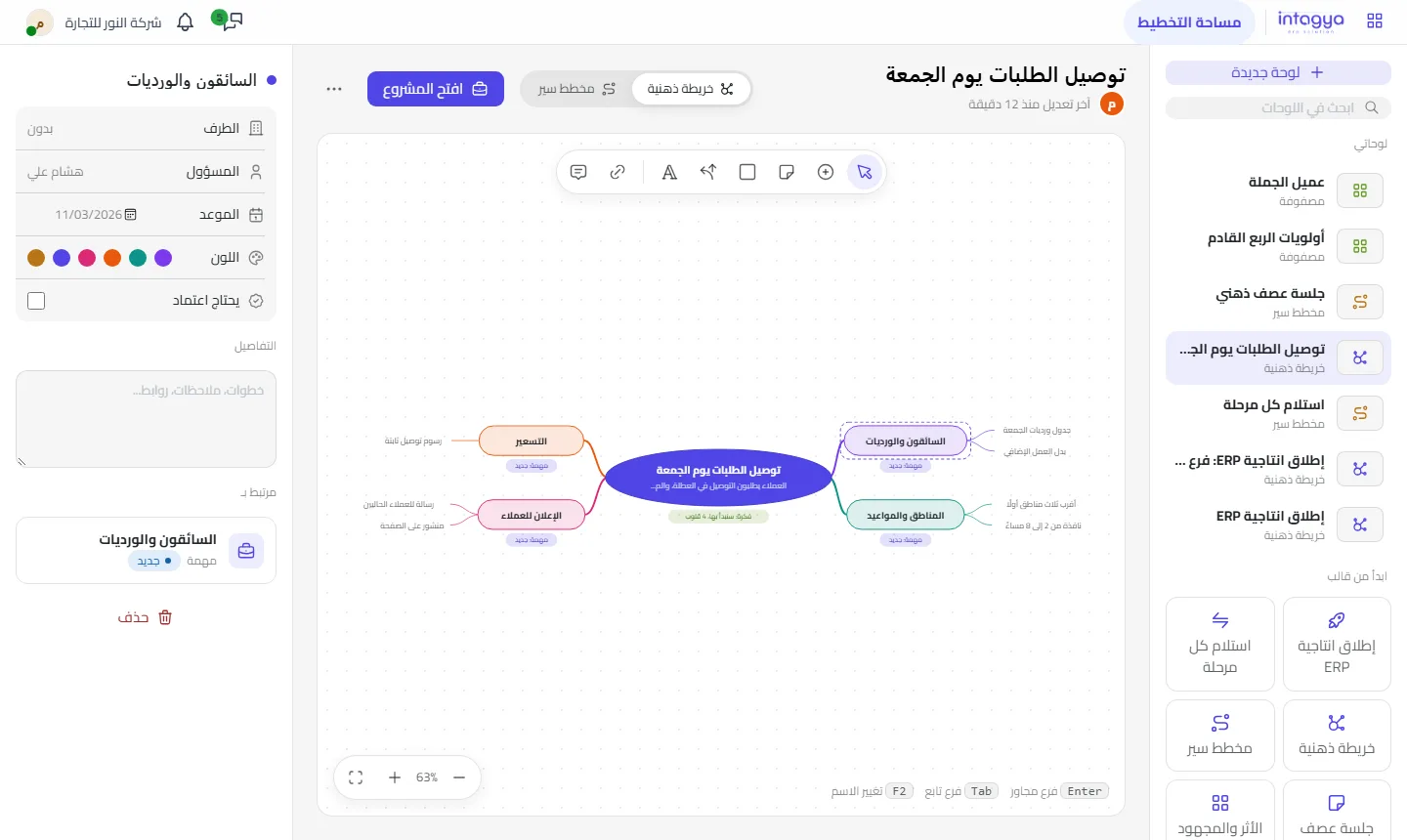
Open Planning Space and create a mind map board. The main idea sits in the middle and the branches grow around it, starting on the right. Typing is quick from the keyboard:
- Enter adds a branch next to the current one.
- Tab adds a branch inside it.
- F2 renames the branch.
- Drag a branch onto another to move it under that one.
Then open any branch and set its owner, deadline and colour, and write the details. For example, a “Shop” branch with “Find a location”, “Lease contract” and “Fit-out” under it, each with a person and a date.
What if the idea came from an employee in the ideas box?
Do not type it again. The idea card has a “Turn it into a mind map” button, which opens a new board with the idea in the centre, showing its stage and how many hearts colleagues gave it.
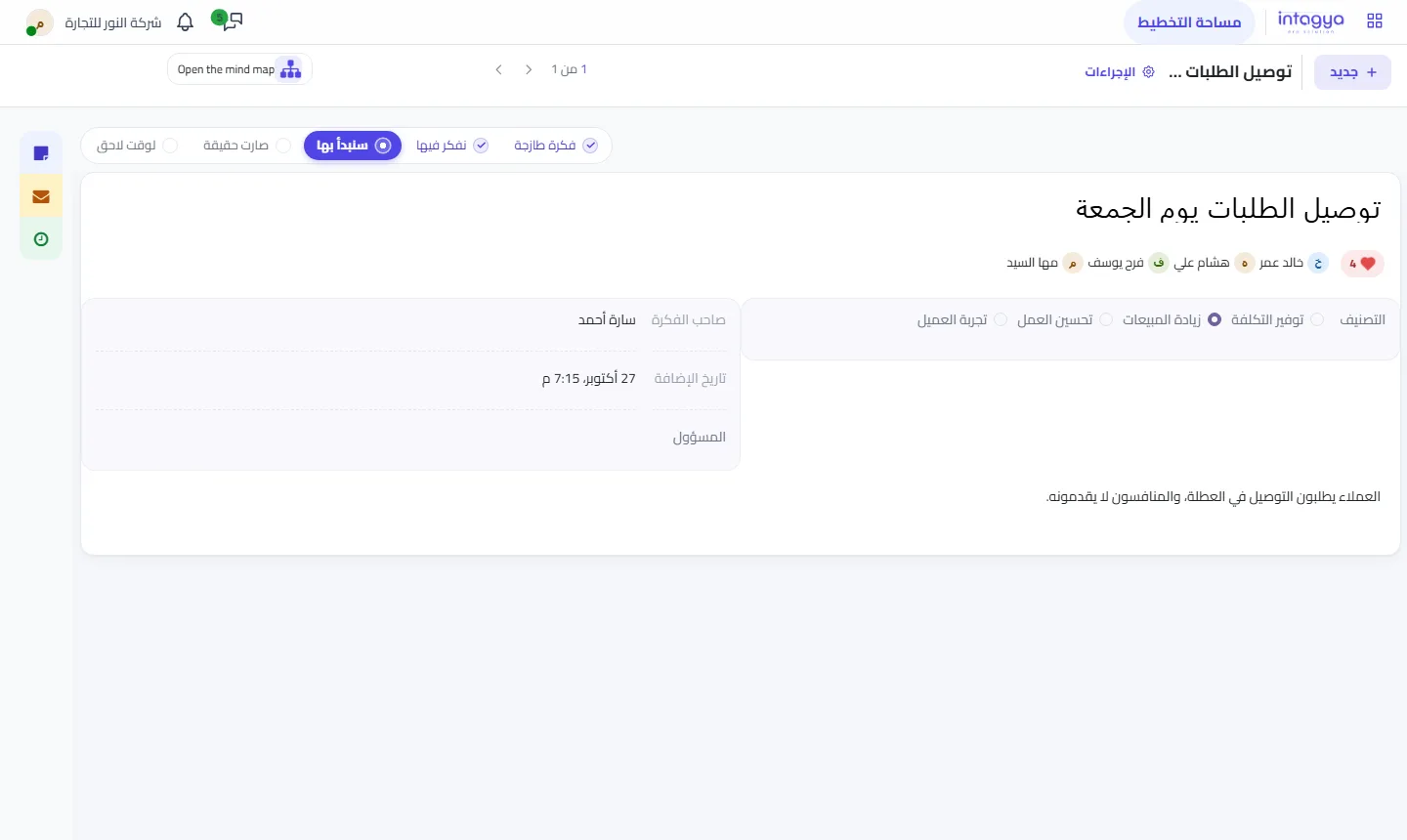
It works the other way too: a branch on your map that needs a wider discussion can be sent to the ideas board for the team to vote on.
How does the map become a project with tasks?
One click on “Turn it into a project”. The first-level branches around the idea become tasks, the branches under them become sub-tasks, and the owner, deadline and details you wrote go with them.
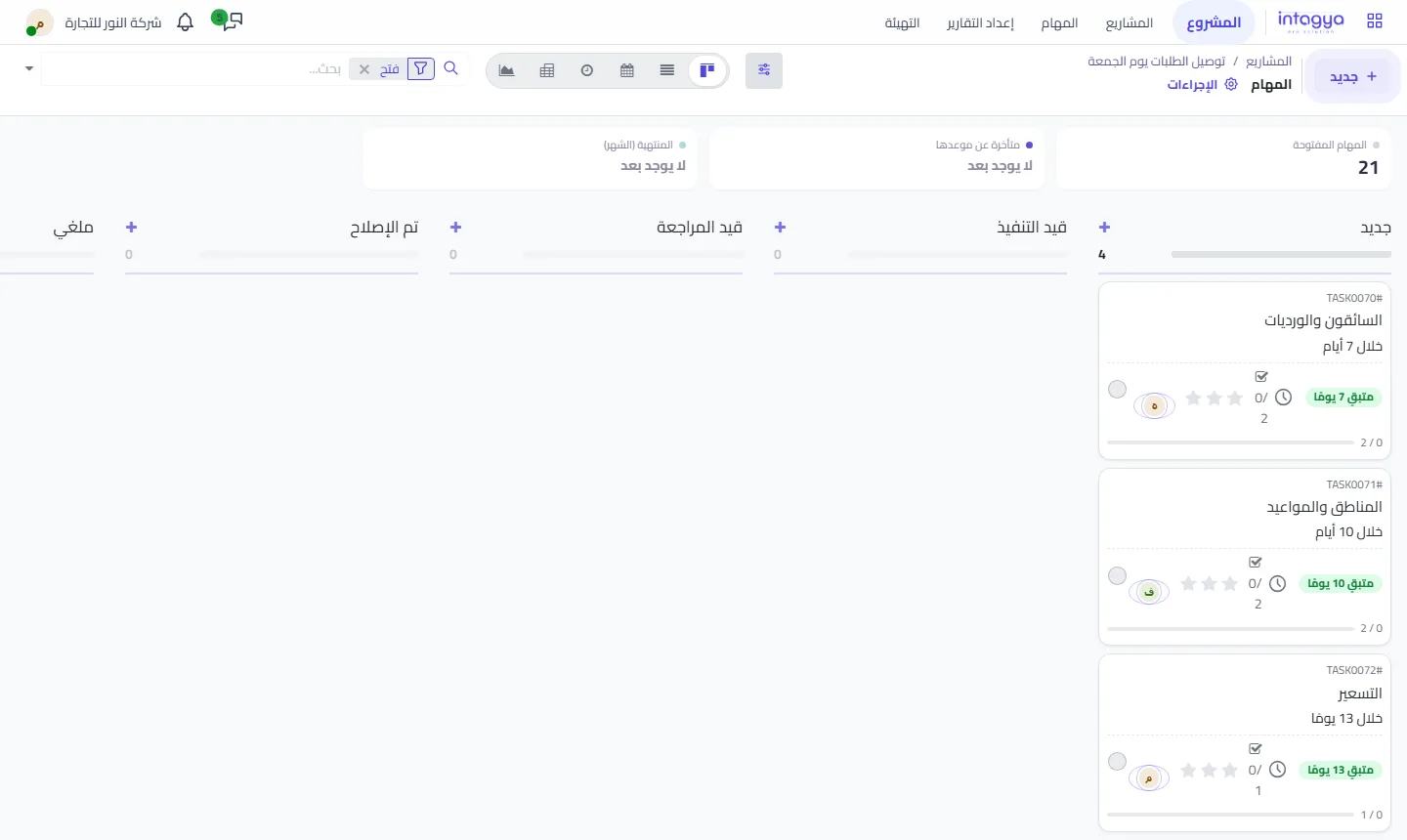
The map does not lose touch with the project afterwards. Each branch shows the current stage of its task, so the map itself tells you what is done and what is stuck. The project has a button that takes you back to the board.
Do I have to convert the whole map?
No. Sometimes you only want one branch: turn it into a task in the project, or into a personal item in your To-do. And if a project already exists, you can bring its open tasks onto the board as branches and see the full picture before adding to it.
Do not convert the map in the first sitting. Leave it a day and ask the owners to open it and add what you missed. A missing step costs less on the board than after work has started.
Who sees the map before I share it?
Only you. Every board is private to its owner until shared with chosen colleagues. You can save it as an image, print it or save it as a PDF for people outside the system. When the project is over, archive or delete the board.
Tomorrow morning, take the project you have been putting off for a month and draw it in ten minutes. Do not aim for the perfect plan; look for the empty branch.
Try Planning Space free for 14 days
FAQ
Do I need the Projects app to turn the map into tasks?
Yes, a project or a project task needs the Projects app. A personal item goes to your To-do instead.
What happens to the map after it becomes a project?
It stays, each branch shows its task's stage, and the project has a button back to it.
Do my colleagues see my boards automatically?
No. A board is private until you share it with colleagues you choose.
Can I start from an example instead of a blank board?
Yes. When the app is empty it offers “Start with a ready example”, and nothing is added until you ask.
Is this your business?
Want to see IntagyaERP on your own workflow?
Book a demo, tell us how your business runs, and watch the system handle a real scenario from your company.
Book a demo