
How do I see where my company's money stands in one minute each morning?
| Intagya ERP
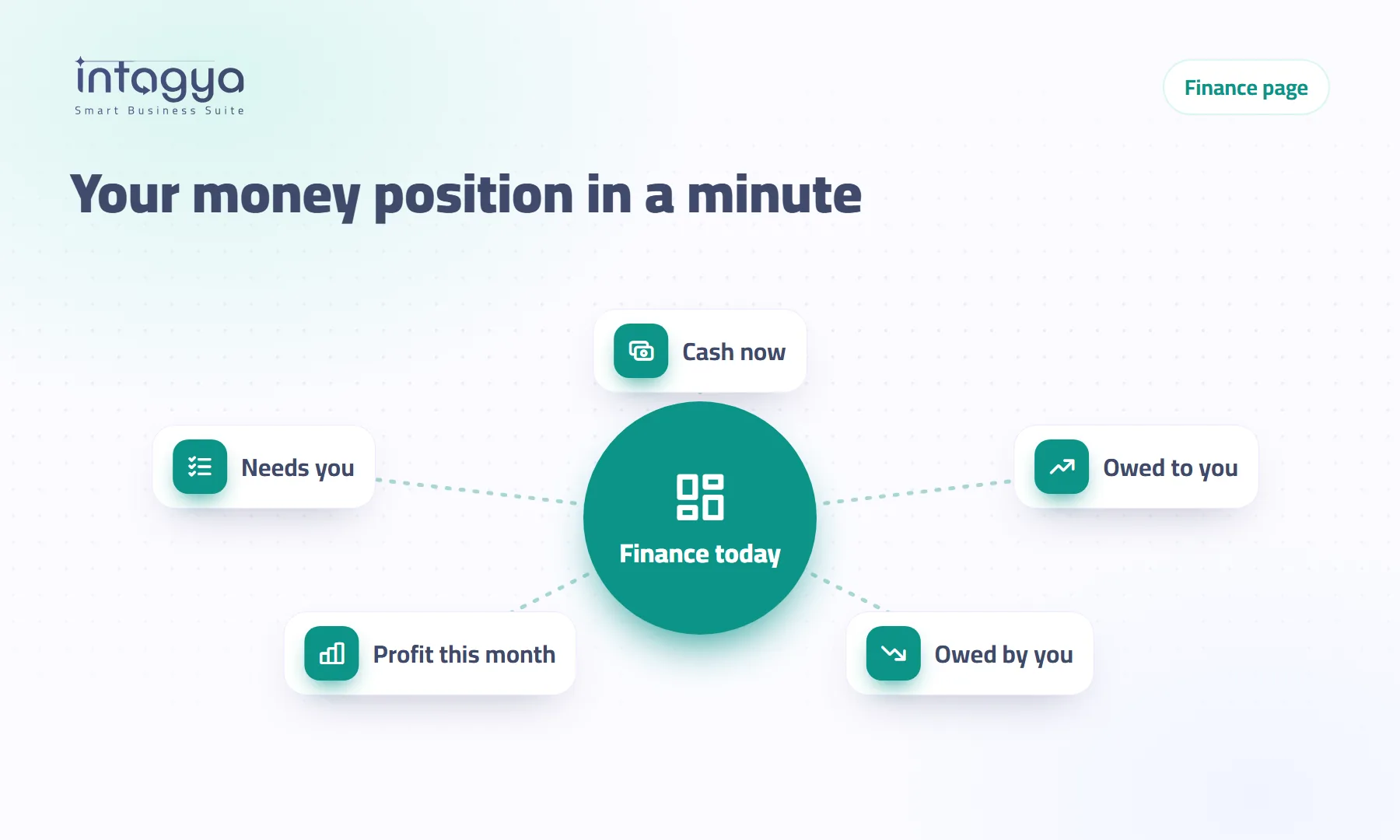
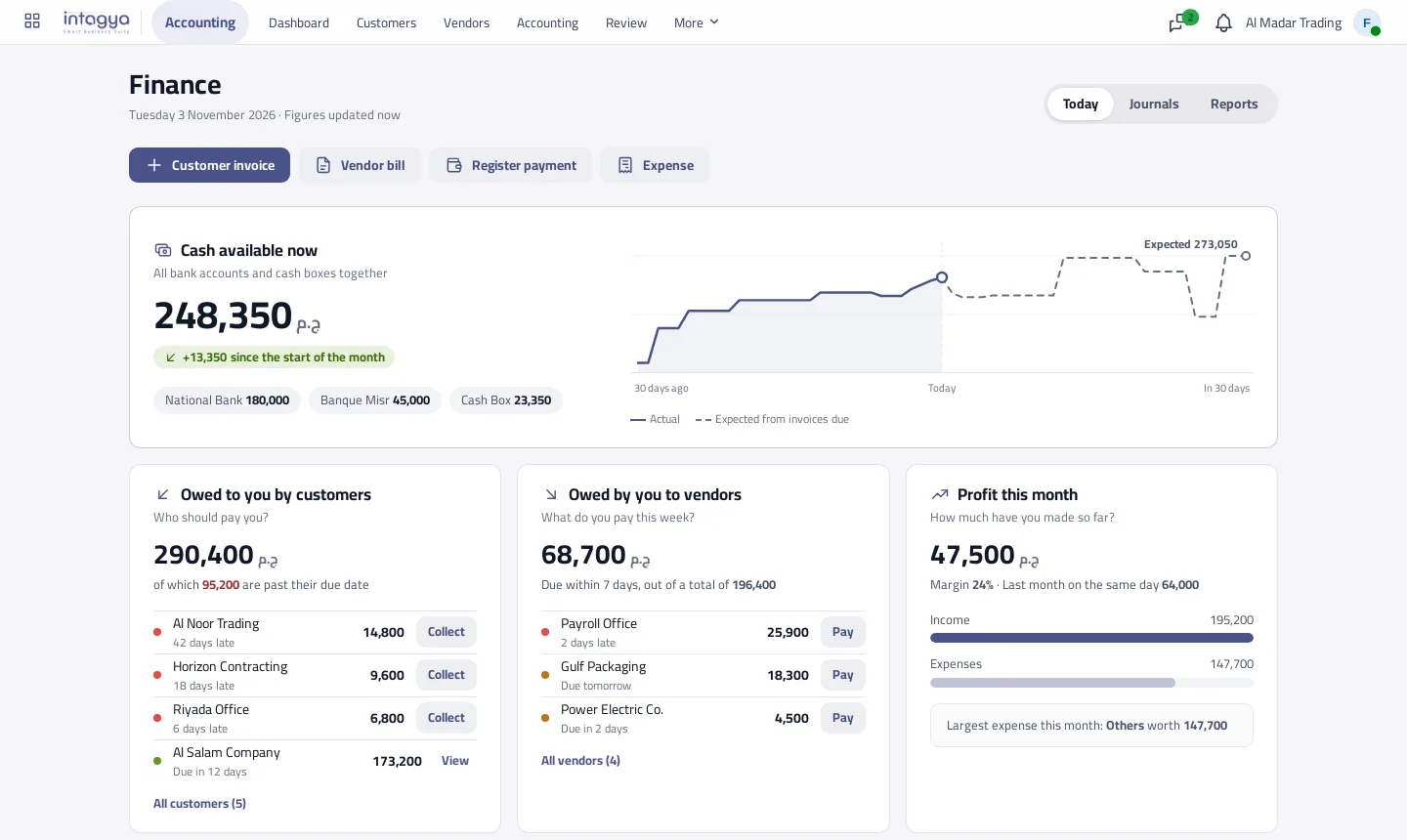
Open the Finance app in Intagya ERP. The first thing you see is the cash available right now across every bank account and cash box, then three cards: who should pay you, what you pay this week, and how much profit you have made this month so far. Below them, a Needs you list shows the tasks that keep the books sound, each with a button that opens the next step.
Nine in the morning. The owner of a supplies company calls the accountant: "How much do we have in the bank? Did Al Noor pay?" The accountant says "one moment", opens the bank statement, then the invoice list, then the vendor ledger.
Ten minutes later the answer comes. Tomorrow the same question comes again.
The information was in the system all along. It was just spread over five screens, and nobody puts it together unless someone asks.
What is the first number I should see about my company each morning?
Cash available now. Not profit, not sales: the money you can actually pay from today.
On the finance page this number sits at the top: the balance of every bank account and cash box added together, each account's own balance below it, and the change since the start of the month. Next to it, a line draws the cash over the last 30 days and continues as a dashed line for what is expected over the next 30.
How does the system work out the expected cash a month from now?
It starts from today's balance, adds open customer invoices on their due day and takes off vendor bills on theirs.
Overdue invoices are left out of that line on purpose. We would rather not comfort you with money that is already two months late. If the dashed line dips in the middle of next month, that is the day your payments pile up, and it is worth planning for now.
If the expected line drops below what you need for salaries, start collecting from the Owed to you card today, not on payday.
How do I see who is late paying me and who to chase first?
The Owed to you by customers card shows everything customers owe you and how much of it is past due. Under the figure, the latest payers come first, each with the days late and the amount.
The Collect button opens payment registration straight on that customer's late invoices. The accountant who just received a transfer does not have to go looking for the invoice.
A customer who is not due yet gets a green dot and a View button only. There is nothing to chase before the due date.
What do I have to pay vendors this week?
The second card adds up vendor bills due within seven days, including late ones, and shows your full total for comparison. The nearest due dates come first, each with a Pay button that opens payment registration on that bill.
Say 68,000 is due this week and 248,000 sits in the bank. Easy call. If the bank only holds 50,000, you find out now rather than on Thursday.
Am I really making a profit this month, or just selling?
The Profit this month card takes income minus expenses from posted entries since the first of the month. It shows the margin, compares with last month on the same day and names your largest expense this month.
Comparing to the same day is fairer than comparing to a whole month. On the 3rd, a full month is the wrong yardstick.
Which tasks keep my books clean without waiting for month end?
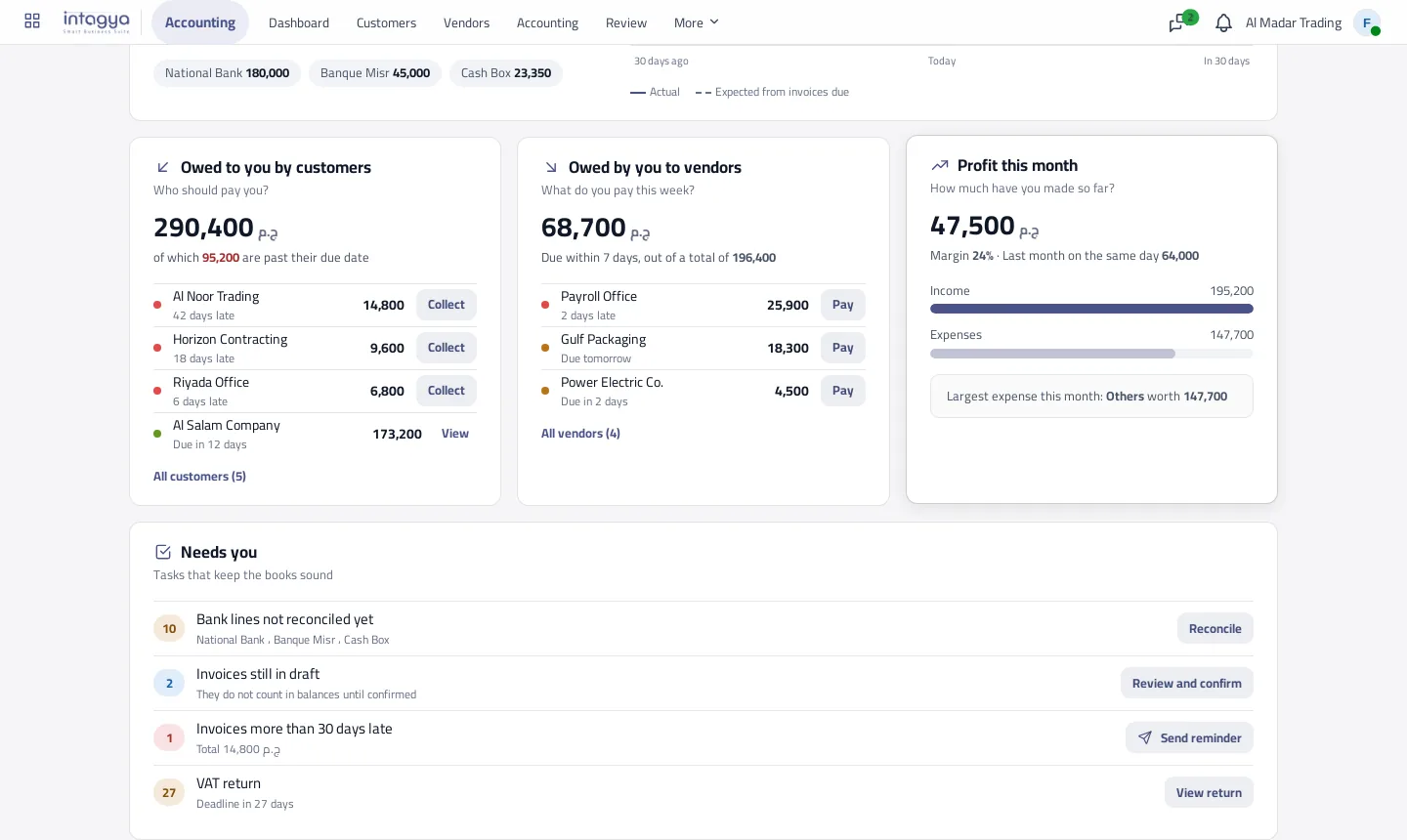
At the bottom of the page, the Needs you list holds only what needs a person, each line with a count and one button:
- Bank lines not reconciled yet, with a Reconcile button.
- Invoices still in draft, which do not count in balances until confirmed.
- Invoices more than 30 days late, with a Send reminder button.
- Days left until the VAT period ends, with a link to the tax report.
When the list is empty the page says Everything is in order. That is the point.
Where did the journals and reports go?
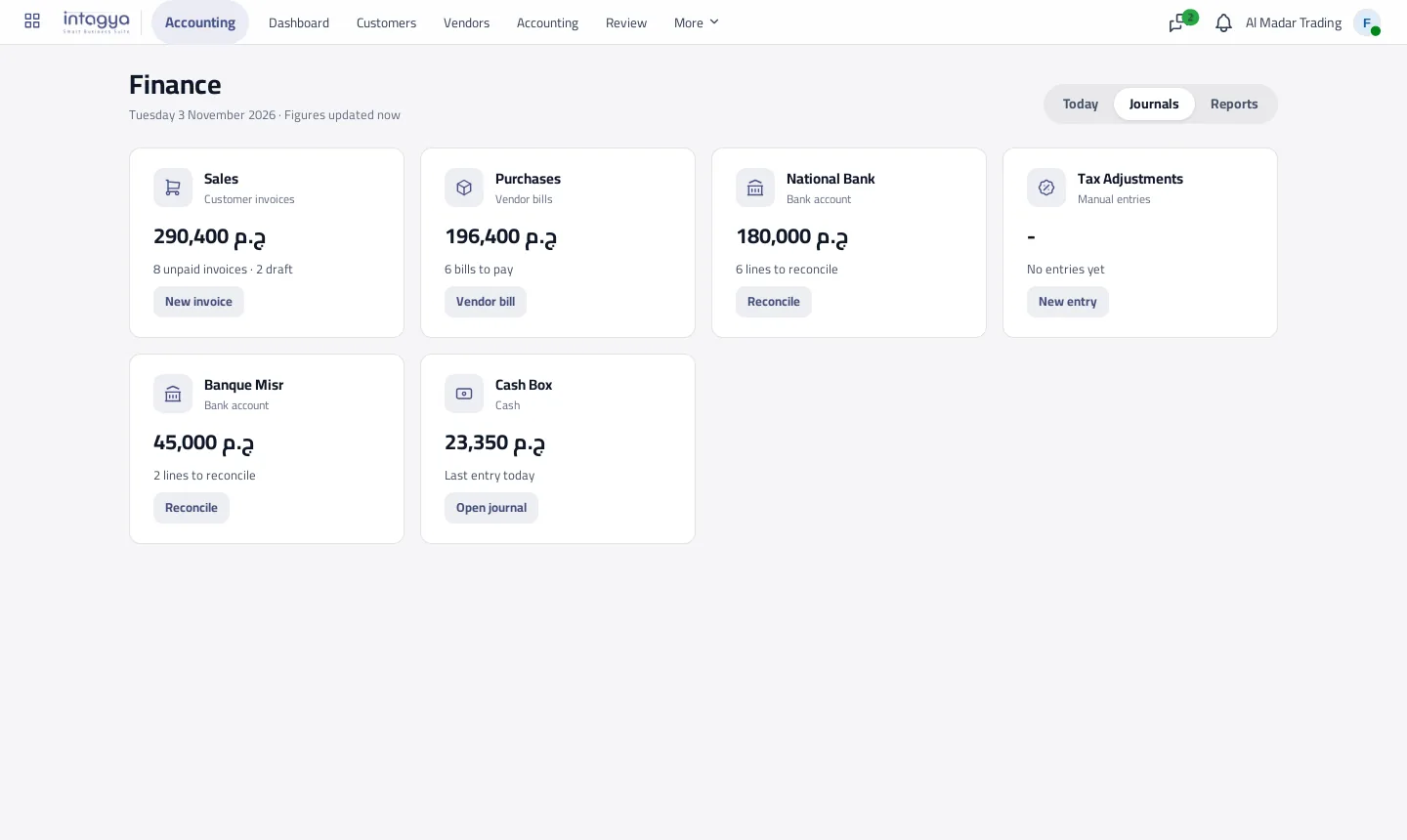
Nowhere. At the top of the page there are three tabs: Today, Journals and Reports. Journals shows each journal as a card with its balance, what is waiting in it and the right next button. Every other accounting menu stayed where it was.
Reports opens the reports on screen: profit and loss, balance sheet, aged receivables, bank book and the tax report. No downloading a file and hunting for it. From the screen you can still export to PDF or a spreadsheet when you need to.
Who in my company can see these figures?
Only users with invoicing or accounting rights see the page, and the figures cover the companies that user works in. A salesperson without access to accounting will not see the bank balance.
Try this tomorrow: open Finance before your first meeting and read four numbers only: cash, what is late to you, what you pay this week and profit so far. Then press one button from Needs you.
Start a free trial and open the finance page yourself
FAQ
Did the old accounting menus disappear with the finance page?
No. The finance page only replaces the journals board you used to land on. Every other menu (invoices, entries, reports, settings) is unchanged, and the journals have their own tab.
Are the figures live?
Yes. They are worked out when you open the page, from posted entries and open invoices, with nothing to refresh by hand.
Why are late invoices left out of the expected cash?
Because they missed their date and nobody knows when they will be paid. They stay on the Owed to you card and in the Needs you list until you follow them up.
Can every employee see the bank balance?
Only users with invoicing or accounting rights, and only for the companies they work in.
Is this your business?
Want to see IntagyaERP on your own workflow?
Book a demo, tell us how your business runs, and watch the system handle a real scenario from your company.
Book a demo