
How do I hold team meetings and record them without an extra app?
| Intagya ERP
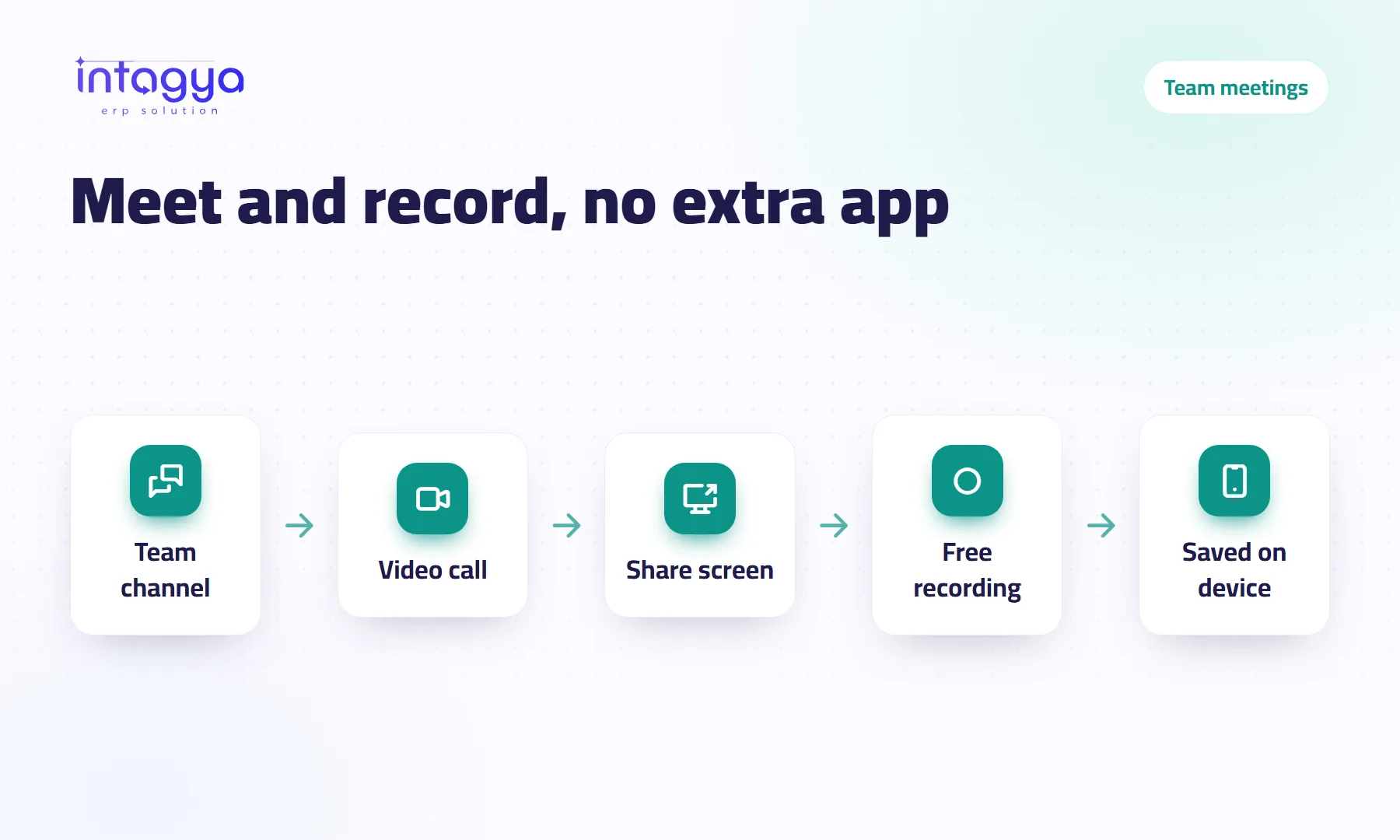
You hold the meeting inside Intagya ERP itself: chat channels, direct messages, voice and video calls and screen sharing. To record, there is a free Record button in the call bar on computer browsers; it captures everyone's video and voice, saves the file on the recorder's device, and everyone sees that the call is being recorded.
Why run team meetings inside the ERP instead of a separate app?
Because a separate app adds steps nobody needs. The manager wants a quick call at ten, drops a link in the group chat, one person has not installed the app, another forgot his password, and the first ten minutes are spent on can you hear me.
Inside Intagya ERP your team is already there. Open the channel or direct message and press the call button. No new accounts. No second subscription.
What can I do in a call inside Intagya ERP?
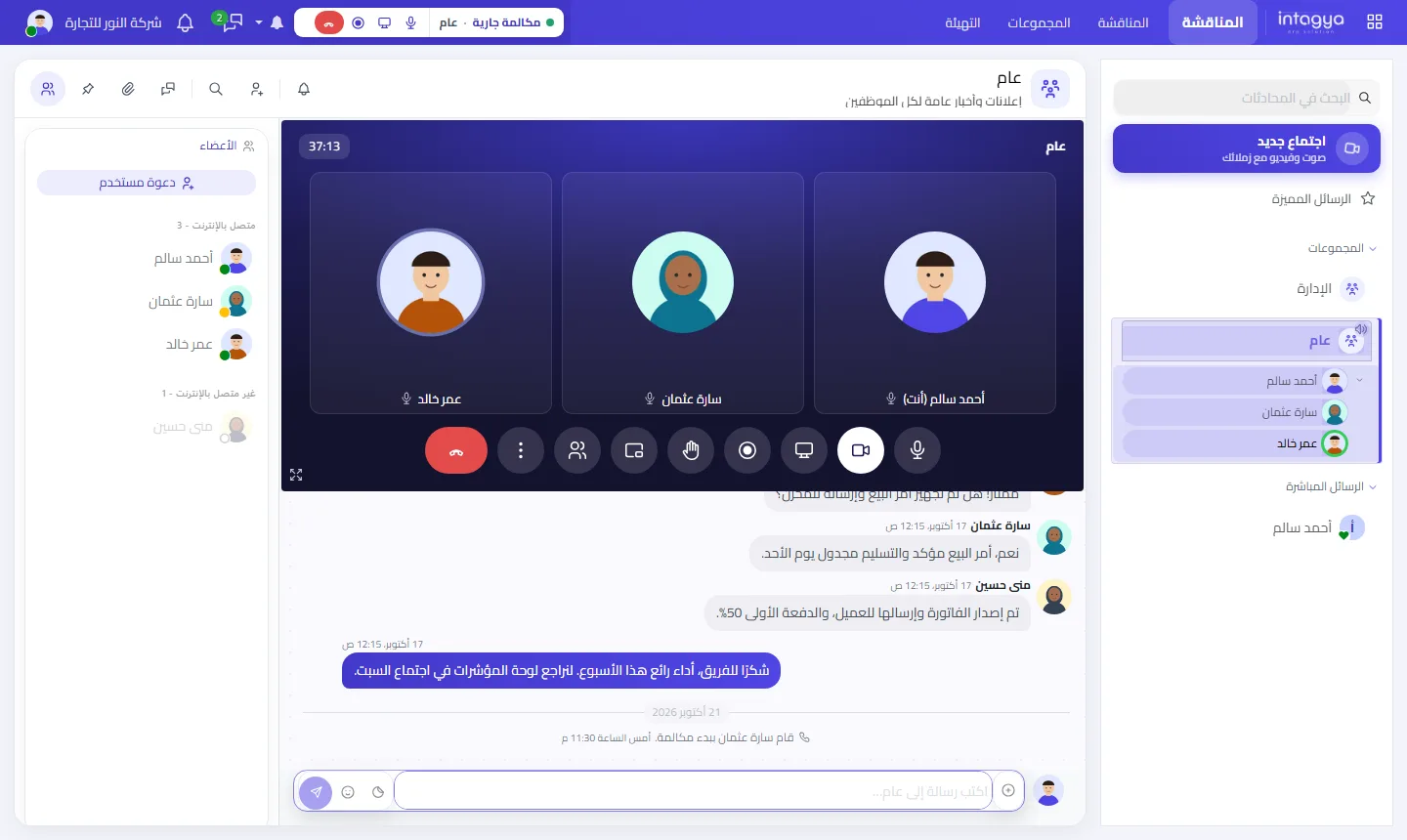
Voice and video calls with one colleague or a group, and screen sharing to show a report or walk through a step. Calls start from a team channel or a direct message, and the written chat before and after stays right there.
Screen sharing is the part I would push hardest. Two minutes on a shared screen saves ten messages asking where to click.
Will the call work if my colleague is on mobile data and I am on office Wi-Fi?
Yes. Calls work across different networks, such as mobile data and office Wi-Fi, through the Intagya relay server. Anyone with a salesperson on the road knows the problem: mixed networks often drop or block direct calls.
How do I record a meeting, and where is the recording saved?
Press Record in the call bar. It is free and works in computer browsers: Chrome, Edge and Firefox. It captures everyone's video and voice plus your microphone, and the file is saved on the device of whoever recorded.
Know the limits before you rely on it. Recordings are not uploaded to the cloud for now, and there is no automatic transcript. The file is on your machine; where it goes next is up to you. Recording from the phone app is not available at the moment.
Do participants know the meeting is being recorded?
Yes, everyone sees that the call is being recorded. I think that is how it should be. Secret recording wrecks trust in a team faster than anything, while open recording tends to make people more careful about what they promise.
Do not record everything. Record decision and training meetings only, and post three lines in the team channel afterwards: what we decided, who owns it, by when.
What does my business gain from meetings and recording inside the system?
An explanation you only give once. Say your sales manager shows a team of six how to build a quotation, sharing her screen and recording. Two months later a new hire joins, and she sends him the file instead of repeating an hour-long walkthrough.
Whoever missed the meeting watches it later. And you are not paying for another meeting tool.
Where do I start tomorrow morning?
Create one channel for your team in Intagya ERP and replace the usual morning meeting with a short call there. Share your screen once, record once, and save the file to the company folder. If you have not tried the system yet, the trial is free for 14 days.
FAQ
Is call recording free?
Yes. The Record button is free, in the call bar on computer browsers.
Can I record from the phone app?
Not for now. Recording works in computer browsers such as Chrome, Edge and Firefox.
Where is the recording saved?
On the device of the person who recorded; it is not uploaded to the cloud at the moment.
Can I share my screen during a call?
Yes, from the call bar.
Is this your business?
Want to see IntagyaERP on your own workflow?
Book a demo, tell us how your business runs, and watch the system handle a real scenario from your company.
Book a demo