
How do I match my bank statement with invoices in minutes, not a whole day?
| Intagya ERP
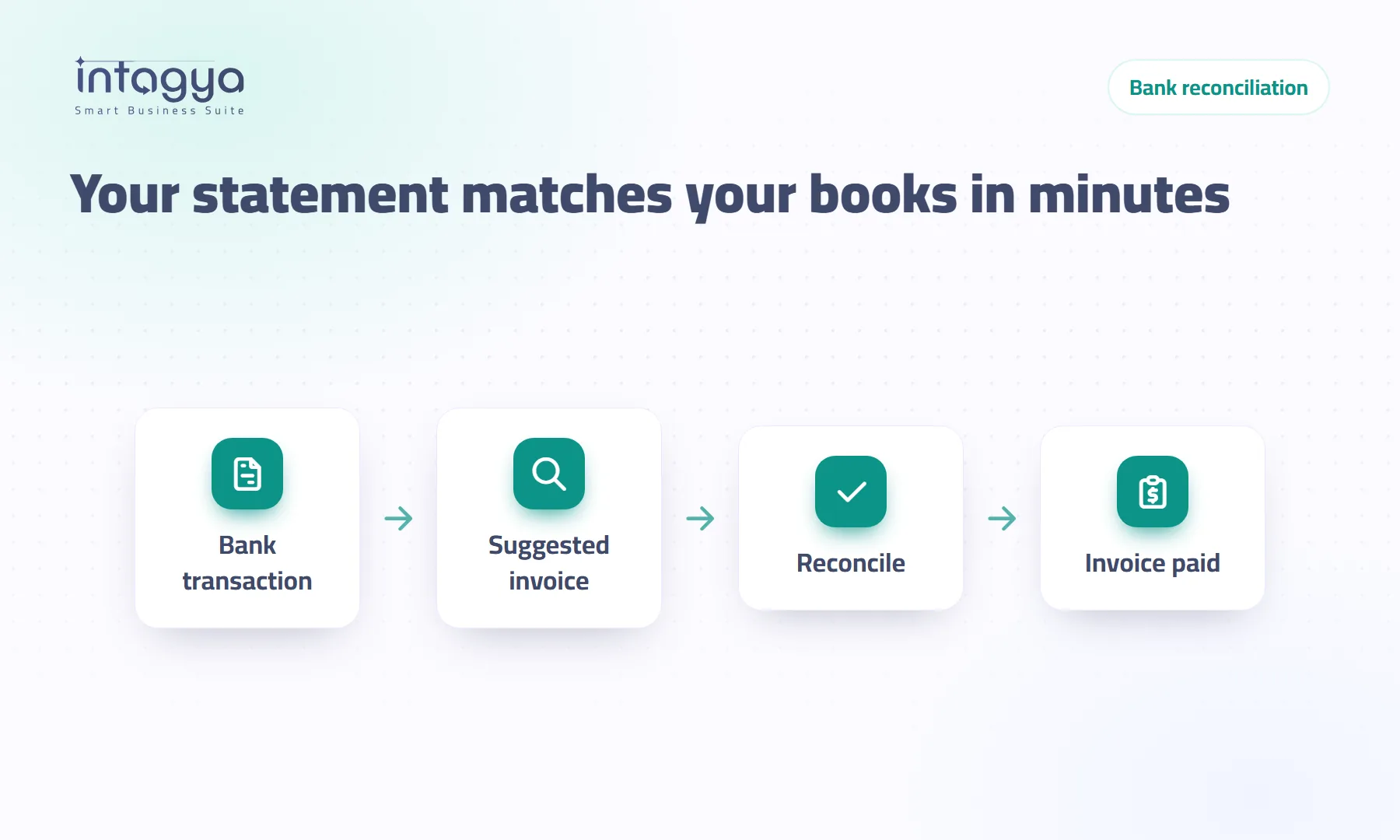
In Intagya ERP you open Reconciliation from Accounting and see the bank transactions waiting. Pick one and the system suggests the open invoices and payments of the same customer, closest amount first, and picks the exact match for you. Press Reconcile and the invoice is paid; Reconcile all matched settles every exact match in one go.
Last day of the month. The owner asks how much came in. The accountant says she has not finished the bank yet. Sixty transactions on the statement, a hundred invoices in the system, and a long manual job between them: which invoice is this transfer for, and where did that cash deposit come from?
The accountant is not the problem. Manual matching is slow by nature, and every mistake shows up later in a customer balance or a report nobody trusts.
What does matching a bank statement with invoices actually mean?
It means linking each line of your bank statement to its counterpart in your books: a customer transfer to an invoice, a vendor payment to a bill, bank charges to an expense. When you are done, the bank balance in the books equals the balance on the statement, and paid invoices really are paid.
Skip it and you run the company on rough numbers. An invoice that was paid still shows as overdue, so collections call a customer who paid last week. Awkward, and it keeps happening.
Why does reconciliation take a whole day in most companies?
Because it is done by eye. The accountant reads the sender on the statement, looks for the customer, opens their invoices and compares amounts. Every customer who pays in parts, or pays two invoices with one transfer, doubles the time.
There is a quieter reason too. Some systems let you tick a bank line as reconciled without closing the invoice. The statement looks clean while the invoice stays open and the money sits in an in-between account. That is worse than not reconciling at all, because it makes you trust a wrong number.
How do I match a bank transaction with an invoice in Intagya ERP?
Open Accounting, then Reconciliation. On the side is the list of transactions waiting; pick one.
- You see its amount, date, reference and partner.
- Below are the open invoices and payments of the same partner, closest amount first, each with how long ago it fell due.
- If exactly one invoice has the same amount, it is already picked and marked Amount matches.
- Check the summary: transaction amount, chosen total, difference.
- Press Reconcile: the invoice is paid and the transaction moves to the reconciled ones.
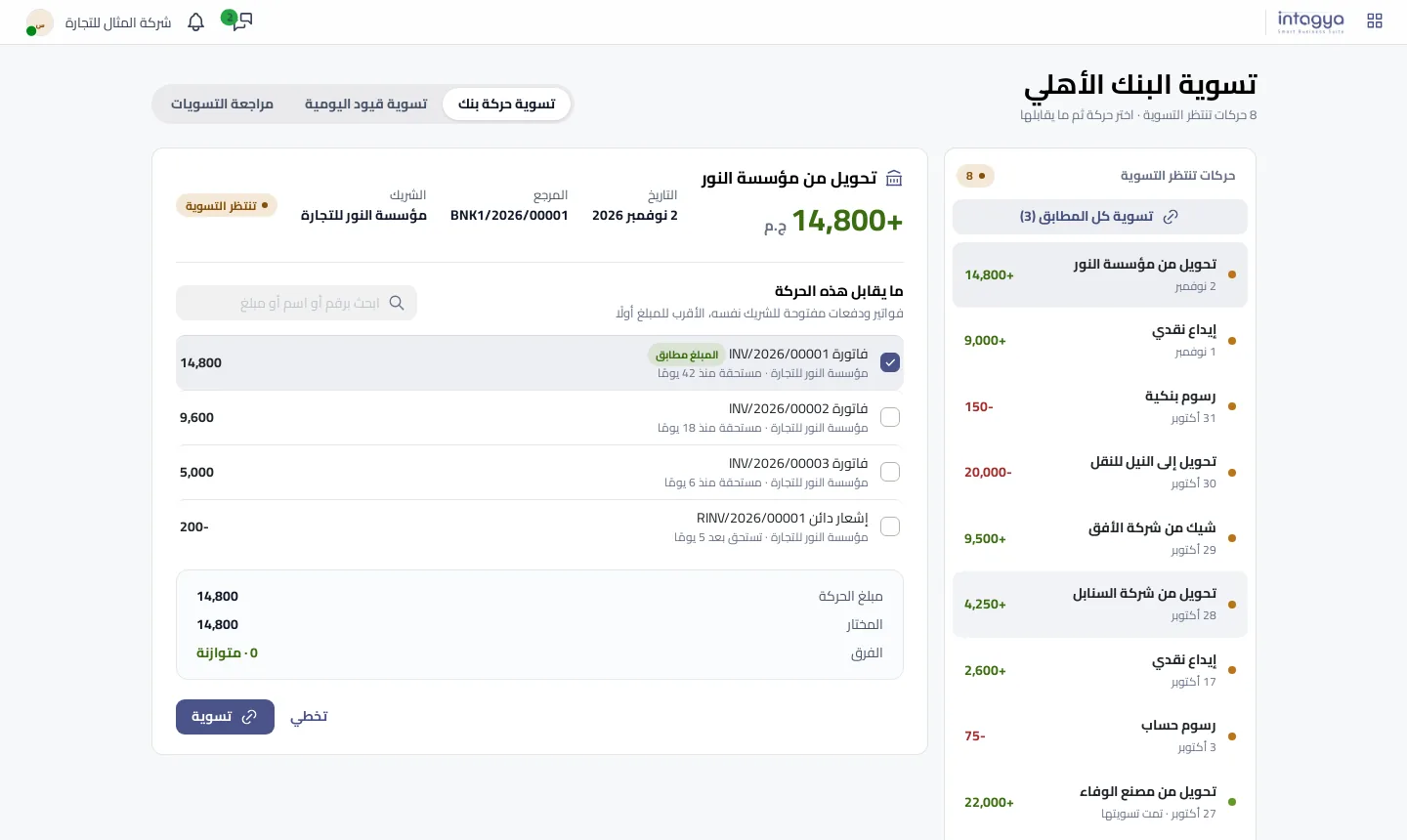
If the bank did not include the customer name, search by invoice number, customer name or the amount itself.
What if a customer paid two invoices in one transfer, or only part of one?
Pick both invoices; the summary adds them up against the transfer. If the transfer is less than the invoice, it is paid in part and the rest stays open on the customer, just as in real life.
If the bank took a fee and you received slightly less, switch on the difference entry, pick the bank charges account and write a label. The invoice closes in full and the difference lands as an expense where it belongs. If the transfer is larger than what you picked, the system will not let it slide: it asks for more invoices or a difference account instead of leaving money hanging.
Start each day with Reconcile all matched. On most days it clears half the list before you think about any single line.
Can I reconcile every exact match at once?
Yes, and that is where most of the time goes back to you. When transactions have exactly one invoice of the same partner and the same amount, a Reconcile all matched button shows their count above the list. It opens a window with each transaction beside its invoice; untick anything you are unsure of and settle the rest in one click.
We took a clear position here: the system does not guess. A transaction with a close but different amount, or with two invoices of the same amount, never appears in that window. It stays in the list for a person to decide.
What if I reconcile something by mistake?
Undo reconciliation puts the transaction back in the waiting list and the invoice back to unpaid, with no manual reversing entry. Every reconciliation on this screen records a real entry, so customer balances, aged receivables and reports change at once, and undoing it puts them all back.
What does the business gain from reconciling every day?
- A bank balance in the books that matches the statement, so you know today's cash.
- Collections never chase a customer who already paid.
- Month-end becomes a short review instead of a hunt for three-week-old lines.
Try it tomorrow morning: import yesterday's statement, press Reconcile all matched, then handle the rest one by one. If that takes more than fifteen minutes for a mid-sized company, some invoices are probably not in the system yet, which is worth knowing on its own.
Read the reconciliation steps in the user guide
FAQ
Does Reconcile really close the invoice or just tick it?
It really closes it. Reconciling records a real entry: the invoice becomes paid, the amount leaves the suspense account, and customer balances and reports show it at once.
Can I match one bank transaction with several invoices?
Yes. Pick them all, and the summary shows their total and the difference from the transaction amount before you press Reconcile.
What happens to a transaction that matches no invoice exactly?
It does not appear in Reconcile all matched. It stays in the list for you to pick its invoice, or to record the difference on an account you choose.
Does the screen work with foreign-currency bank accounts?
The screen works in the company currency. For a foreign-currency transaction you record the payment from the invoice itself, and the system tells you so with a clear message.
Is this your business?
Want to see IntagyaERP on your own workflow?
Book a demo, tell us how your business runs, and watch the system handle a real scenario from your company.
Book a demo