Integrated company management, with every department connected
Intagya ERP rethinks how a business is run. Instead of departments working as separate islands, the system gives you one organised workspace of connected sections and apps that keeps data consistent, makes operations more efficient and shows every KPI live.
1. Personal workspace and daily work
The employee's daily base: organising their time and staying in touch with the rest of the team so work keeps flowing.
Discuss
Instant internal messaging between employees and departments: share files and open team channels, with voice and video calls and meetings that work across any two networks, in the browser and in the mobile app, so work stops depending on outside chat apps.
Key sections
DiscussYour inbox and direct messages with colleagues.
ChannelsGroup channels per team or topic, with file sharing.
Canned responsesSaved texts you insert into a chat with a short code.
Voice and videoCalls inside a channel, with a history of past calls.
Meetings and recordingVoice and video meetings from any chat, with free recording saved on your device.
Between any two networksCalls work between a phone on mobile data and a computer on Wi-Fi, through the Intagya relay server.
New meetingThe "New meeting" button starts a video meeting and you invite whoever you want.
Call toolsMicrophone, camera, screen sharing, recording, raise hand, participants, and a floating window that keeps the call in view while you work. Recording and screen sharing are on a computer.
In the mobile appThe same chats and calls in the Intagya app, with a ringing incoming call (see the mobile app section).
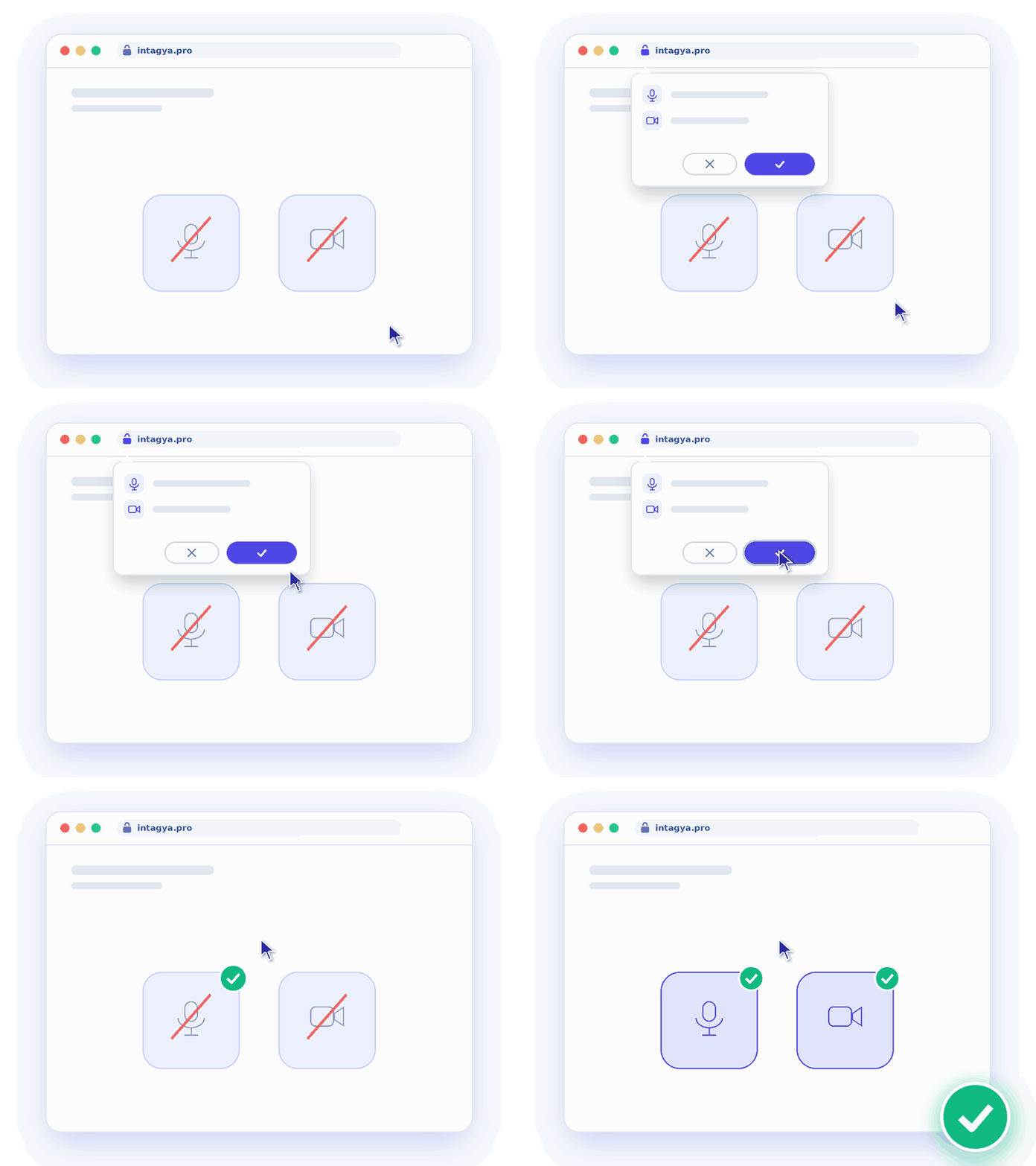
How to let the browser use the microphone and camera: press Allow.
Timesheets
Record and track the actual hours spent on tasks and projects, which makes labour cost and productivity easy to calculate.
Key sections
My TimesheetsLog your daily hours against a project and a task.
All TimesheetsEvery employee's hours in one list for review.
ReportingHours by employee, project or task, and compared with attendance hours.
Calendar
The central place to organise appointments and meetings and to follow operational and sales deadlines.
Key sections
CalendarYour meetings by day, week or month, with colleagues' calendars shown next to yours.
AttendeesInvite people to each meeting and follow their answers.
RemindersAn alert before the meeting, as early as you choose.
To-do
A personal space for every user to plan their daily tasks and set priorities, so no operational step is forgotten.
Key sections
InboxEvery new to-do starts here.
Today, This Week, This Month, LaterColumns you drag a to-do into to order your priorities.
Priority and activitiesA star for what matters, and a dated activity on anything that needs a follow-up.
Ideas box
One place for the team's ideas: an employee writes the idea in the Ideas box channel the way they would ask an AI assistant, everyone sees it and gives it a heart. The management follows each idea on a board from Fresh idea to Came true, with a monthly hall of fame and an idea of the month.
Key sections
The Ideas box channelIn Discuss, every employee has it. The writing box sits in the middle of the screen under a question that changes; the first line becomes the title of the idea and the rest its details, with an optional category: cost saving, more sales, better work or customer experience.
The heartOne heart per employee on each idea, from the idea card in the channel or from the board; a second press takes it back. The count is the same in both places.
The ideas boardFrom Ideas box in the Discuss top menu or from the home screen: columns Fresh idea, Thinking about it, We will start it, Came true, For later, with Most hearted, My ideas and category filters.
Hall of fame and idea of the monthThe three colleagues who shared the most ideas this month, ranked by hearts, and the idea that got the most hearts. Ideas sent without a name never enter the hall of fame.
BadgesIdea maker after 5 ideas, Team favourite after 50 hearts, and Change maker when one of their ideas comes true.
Without my nameAn employee can send an idea without their name from I have an idea; only the ideas manager sees who wrote it.
Ideas managerMoves an idea between stages, assigns someone to it, and writes what changed once it came true; the channel gets a notice for every move and a thank-you message for the author.
Smart Dashboard
The manager's home screen: operational KPIs at a glance, plus a Diagnosis tab that finds bottlenecks and suggests fixes, with alert thresholds each company sets for its own business.
Key sections
Company overviewRevenue, purchases and net profit, unpaid invoices, open opportunities and tasks.
DiagnosisWhere operations are stuck, with suggested fixes.
My workWhat is waiting for you today.
Activity logWhat happened most recently in the system.
2. Operations and tasks
Turning the company's plans into work that gets done and followed up.
Planning Space
Mind maps, flowcharts and matrix boards to plan work before doing it: draw the idea and its branches or the steps of a process, set the side, the responsible person and the deadline on each branch, then turn the map into a project with tasks and the chart into an approval cycle in one click.
Key sections
BoardsEach board is a mind map, a flowchart or a matrix. Your boards are in the side list with Shared with me, Archived, search by name, and the New board button.
TemplatesLaunch Intagya ERP, Hand over each stage, Mind map, Flowchart, Brainstorming session, Impact and effort, Empathy map and Customer journey. Nothing is created until you pick a template or press Start with a ready example.
Mind mapThe idea in the middle and its branches around it, right side first. Enter adds a sibling branch, Tab a sub-branch, F2 renames, Delete removes. Drag a branch onto another to move it under it.
FlowchartStart, step, decision and end shapes you place anywhere, joined with the Arrow tool; an arrow can carry a label such as Yes or No.
Matrices and sticky notesImpact and effort (quick wins, big projects, small tasks, not now) and the empathy map (says, thinks, does, feels), with coloured sticky notes, comments and free text on any board.
Side panelClick any element to set the side (the customer's company, Intagya ERP, shared), the responsible person, the deadline, the colour, the step shape and Needs approval, and to write details.
Receiving ownerIn the launch template: one person from the customer's company who receives and approves every stage. Turn it into a project stays locked until they are chosen.
Turning into a projectFirst-level branches become tasks and deeper ones sub-tasks, with responsible person, deadline and details; the branch then shows the task stage, and the project has a button back to the board. One branch can also become a task in the project or a personal To-do, and open tasks of a project can be brought onto the board.
Ideas and approvalsAn idea in the Ideas box has Turn into a mind map, and a branch can go to the ideas board. A flowchart becomes an approval cycle: every step marked Needs approval becomes a stage approved by its responsible person, and any branch can be sent as an approval request.
Sharing and savingA board is private to its owner until shared with colleagues from the avatars above it. The ... menu has Rename, Share, Save as image, Print or save as PDF, Archive and Delete.
Settings and accessThe app needs no setup. The board owner writes the Customer side name in the side panel when nothing is selected. The system administrator sees every board, and turning a chart into an approval cycle is for approvals managers only. Project and task buttons show when the Project app is there, ideas and approvals buttons when those apps are.
Tasks Management
Turns the company's plans into clear, actionable tasks: assign them to employees, set priorities and follow each stage step by step.
Key sections
ProjectsEach project on a card: its manager and open tasks.
Tasks"My Tasks" and "All Tasks" in columns by stage, with assignee, priority and deadline.
ReportingTasks analysis and customer ratings.
ConfigurationProject and task stages, tags and project roles.
Helpdesk
Receive customer tickets, assign them to the team, and follow replies and response times until each ticket is closed.
Key sections
TicketsCustomer tickets in columns by stage, with priority and assignee.
TeamsSupport teams and their members.
ConfigurationTicket stages and tags.
3. Accounting and finance
The financial backbone of the system, making sure every money movement is recorded precisely.
Expenses
Lets employees submit expense and petty-cash claims, handled through a flexible approval cycle that runs from the supervisor to the accountant.
Key sections
My ExpensesRecord an expense with its category and amount, and attach the receipt.
Expenses to ProcessWhat is waiting for the manager's approval or the accountant's payment.
ReportingExpenses by employee and category.
ConfigurationExpense categories.
Finance
Automatic journal entries, the chart of accounts, customer and vendor accounts, and closing financial reports such as the balance sheet, plus financial review and audit.
Key sections
DashboardA card per journal: sales, purchases, bank, cash.
CustomersInvoices, credit notes, payments and follow-up reports.
VendorsBills, refunds and payments.
AccountingEntries and transactions, closing and budgets.
ReportingFinancial statements, aged balances, partner and tax reports, and dynamic financial reports.
E-invoicing
Connects invoices to government e-invoicing: Egypt's ETA, Saudi Arabia's ZATCA and Jordan's JoFotara. It stays off until the connection details are complete, then switches itself on.
Key sections
Egypt (ETA)Turns on for a journal once the branch details the tax authority requires are filled in.
Saudi Arabia (ZATCA)Turns on once the production certificate (CSID) is issued.
Jordan (JoFotara)Sending to JoFotara is pre-selected once the company details are complete.
4. Sales and customer relations
One connected system that simplifies the sales cycle and grows revenue.
Sales
Quotation to sales order to invoice in one flow, without typing the same data twice.
Key sections
OrdersQuotations and sales orders, sales teams and customers.
To InvoiceOrders that have not been invoiced yet.
ProductsProducts, their variants and pricelists.
ReportingSales by salesperson, product or customer.
Field SalesReps' orders, customer visits and van stock.
Contracts
Manage and document long-term contracts and agreements with customers or partners, with automatic renewal alerts.
Key sections
ContractsEach contract with its customer, start and end dates, sales order and payment terms.
Contract TemplatesReady texts every new contract starts from.
Contacts
One central database of all customers, vendors and partners that prevents duplicates and keeps contact details easy to reach.
Key sections
ContactsCustomers, vendors and people in one list, with phone, email and country.
Contact fileAddresses, the company's people, and its sales and invoices.
ConfigurationTags, industries, bank accounts, contact type and vendor type.
CRM
Follow every opportunity from lead to closed deal, with analysis of how the sales team is performing.
Key sections
PipelineOpportunities in columns by stage, with the expected revenue of each stage.
LeadsProspects before they become opportunities.
My ActivitiesThe calls and meetings you owe.
ReportingForecast, pipeline analysis and activities.
Import OpportunitiesImport opportunities from a file and spot the duplicates.
Marketing Suite
WhatsApp and social media from one screen: customer chats and message templates, plus writing, scheduling and publishing posts to Facebook, Instagram, LinkedIn, X and YouTube.
Key sections
DashboardConversations, messages, scheduled and failed posts on one screen; each card opens its list.
PostsWrite a post once, then publish it now or schedule it on every linked account.
FeedPosts from the pages you follow, in one place.
Conversations and messagesWhatsApp chats with customers inside the system, with a log of every message sent or received.
TemplatesWhatsApp message templates approved by Meta, to message many customers at once.
ConfigurationLink a WhatsApp Business number and Facebook, Instagram, LinkedIn, X and YouTube accounts.
Revenue
Monitor collected cash and profit, and analyse the company's different income sources.
Key sections
InvoicesCustomer invoices with due date, amount due and payment status.
PaymentsWhat was collected from each customer.
Follow-up ReportsCustomers who are late paying.
Point of Sale
A fast, simple cashier screen for direct sales, linked live to accounting and inventory so quantities update instantly. For restaurants: a table plan and a kitchen screen.
Key sections
DashboardYour points of sale; open a session from here.
OrdersOrders, sessions, payments and the void list.
ProductsProducts, combo choices and pricelists.
Kitchen screenOrders reach the kitchen the moment they are entered.
ReportingSales details and the session report.
ConfigurationPayment methods, floor plans and preparation printers.
5. Inventory, purchasing and logistics
Full control over goods and the supply chain, to cut waste and keep products available.
Procurement
Automates the purchasing cycle from request for quotation (RFQ) to approved purchase order, with vendor price lists and agreements.
Key sections
OrdersRequests for quotation, purchase orders and vendors.
ProductsProducts and their variants.
ReportingPurchase analysis.
ConfigurationVendor pricelists.
Stock Management
A clear warehouse structure, including virtual locations such as transit, scrap and returns.
Key sections
OverviewA card per operation type: receipts, delivery orders, manufacturing.
OperationsTransfers, inventory adjustments and replenishment.
ProductsProducts, lots and serial numbers, and packages.
ReportingStock, locations, and moves history and analysis.
ConfigurationWarehouses, locations and delivery.
Traceability and stock turnover
Track products by serial number and by lot and expiry date, and run periodic counts with automatic adjustments.
Key sections
Lots / Serial NumbersEach number with its product and creation date.
AdjustmentsPeriodic counts and the correction of differences.
Moves HistoryWhere every item came from and where it went.
PackagesFollow products inside their packs.
Fleet
A register of company cars and buses: drivers, fuel, servicing dates, and leasing and insurance contracts.
Key sections
FleetVehicles in columns by status, each with its driver.
ContractsLeasing and insurance contracts and their end dates.
ServicesServicing and repairs, with their cost.
OdometersOdometer readings per vehicle.
ReportingFleet costs.
6. Production and manufacturing
Production Management
Plan and monitor manufacturing, define bills of materials (BOM), and schedule production orders and work steps, so lines run efficiently and the finished product meets quality.
Key sections
Manufacturing OrdersEach order with its product, quantity and component availability.
Work OrdersOperation steps on the work centers.
Bills of MaterialsThe components of each product and their quantities.
Unbuild Orders and ScrapTake a product back to its components, and record scrap.
ReportingWork orders and overall equipment effectiveness (OEE).
Repairs
Repair orders for customers' items, with spare parts taken from stock and the service invoice issued straight from the order.
Key sections
OrdersA board with one column per status: New, Confirmed, Under Repair, Repaired. Each card shows the customer, the item and the due date, in red when late. The order number is given automatically.
Quick summaryAbove the board: orders waiting, under repair, late, and repaired this month.
PartsSpare parts added to the order are taken from stock; the quotation and then the invoice are issued from it.
ReportingAnalysis of repair orders.
7. Human resources
Managing your people professionally across the whole employee life cycle.
Announcements
Publish circulars, management decisions and company news so every employee gets them at once.
Key sections
AnnouncementsEach announcement with its number, title and status.
Hiring Flow
Manage job applications, follow candidates' CVs and schedule interviews through to the offer.
Key sections
By Job PositionsA card per open position with its number of applicants.
All ApplicationsApplicants with their stage, rating and recruiter.
Talent PoolsCandidates you keep for future positions.
ReportingRecruitment analysis.
Work Time Management
Track check-in and check-out, shifts and overtime, integrated with fingerprint devices.
Key sections
OverviewToday's attendance for all employees.
ManagementCheck-in and check-out records, worked hours and overtime.
Kiosk ModeA check-in screen at the company entrance.
Attendance SheetsAn attendance sheet per employee for the period.
ConfigurationOvertime rulesets.
Reminders
Alerts before official documents expire: residence permits, IDs, employment contracts and medical checks.
Key sections
RemindersEach reminder with its title, and the record and date field it watches.
Transfers
Record internal moves between branches, departments or job titles.
Key sections
TransfersEach transfer with the employee, date, destination company or branch and status.
Payroll
Salaries calculated automatically from working days, absences, incentives and deductions, with payslips issued for each employee.
Key sections
Employee PayslipsOne payslip per employee for the period, with its status.
Payslips BatchesThe month's salaries for all employees in one batch.
Salary StructuresWhat makes up the salary of each employee category.
Salary RulesThe formulas for allowances, deductions and insurance.
Resignation
Manage and document end of service: exit interviews to learn why people leave, and final settlements.
Key sections
Resignation RequestEmployee, department, joining date, last working day and notice period.
Approved ResignationThe requests that were approved.
Events
Organise internal company activities, training courses and all-hands meetings.
Key sections
EventsEach event on a card: date, place and number of attendees, in columns by stage.
ReportingAttendees and revenues.
ConfigurationEvent templates and stages.
Employees
A complete digital file per employee: personal details, qualifications, attached documents and career history.
Key sections
EmployeesA card per employee: job, department and contact details.
DirectoryThe company directory as every employee sees it.
DepartmentsThe org structure and the headcount of each department.
LearningCertifications and training attendance.
ReportingThe skills available in the company.
Leaves
Request and manage annual, sick and casual leave, with each employee's remaining balance kept automatically.
Key sections
My TimeYour balance per leave type, your requests and your allocations.
OverviewWho is off and when, for the whole team.
ManagementApprove time-off requests and allocations.
ReportingTime off by employee or type, and balances.
ConfigurationTime-off types, accrual plans and public holidays.
8. Extra tools
Helper apps that make daily work faster and safer.
Passwords
A secure vault to store and share passwords for outside platforms with authorised team members only.
Key sections
All PasswordsA card per account, with two buttons that copy the password and the user name without showing them.
Passwords by BundlesBundles (vaults) per team, each with who can see it and who can edit it.
Tags and sortingFilter accounts by tag from the side panel, sort them, and select every result for a mass action.
ConfigurationTags, portal vaults and settings.
Approvals
An app in every workspace, whatever the business: the company can require staged approval before quotations, purchase orders, vendor bills and expenses are confirmed: the Confirm button stays locked until the last approval. Employees can also send a purchase or general request that is not tied to a document. Every approver sees what waits for their decision and the path of each request.
Key sections
DashboardHow many requests wait for your decision, your requests under review, approved this month, rejected or returned, and the list of what waits for you.
New RequestPick the request type, write the subject, amount and details, attach files; it goes to the first approver.
Inside the appsQuotations, purchase orders, vendor bills and expenses show Send for Approval, and Confirm stays locked until the last approval. Each of these workflows is off until the approvals manager turns it on.
My RequestsThe requests you sent, who has each one now, and its status.
Awaiting My DecisionWhat waits for your approval: approve, return for changes, or reject with a reason.
All RequestsEvery request of the company, for the approvals manager.
Request Types and WorkflowsThe stages of each type and who decides at each stage: a user or a group, and when an overdue request escalates.
Website
A built-in tool to manage the company website's content, or connect it to the system to receive customer or employee requests directly.
Key sections
SiteThe homepage, the menu editor and the content.
eCommerceThe shop's orders and products.
ReportingAnalytics, online sales, visitors and page views.
Intagya ERP Support
Reach the Intagya support team from inside the system: open a ticket and follow its replies and status without leaving your workspace.
Key sections
My TicketsEach ticket with its subject, the team it goes to (training, maintenance, development, operations), its priority and its status at Intagya.
9. Industry apps
Specialised apps added for your line of business, tied to accounting and HR in the same system.
Real Estate
Every project with its units, each showing whether it is available, sold or rented. Sales, rentals and installment plans tracked payment by payment, rent invoices issued on their due dates, broker commissions and maintenance requests.
Key sections
ProjectsProperty projects, each with its units.
InventoryUnits by status and type: residential, commercial, land.
Property BookingEach booking with its unit, customer and sale price.
Property Rental and Rent scheduleRental contracts and their installments, each with its due date and payment status.
Payment Plans and CommissionInstallment schemes and broker commissions.
Travel
Hajj, Umrah, domestic and international programs with their packages and prices, and flight, hotel and transport bookings for every traveller in one place.
Key sections
Domestic Travel and International TravelTrip programs and their bookings.
Hajj Travel and Umrah TravelHajj and Umrah programs with their packages.
ReservationsFlight bookings, tickets, transport and hotels for each traveller.
ConfigurationPrograms, hotels, airports, flight and bus companies, meals and the child policy.
Medical Clinic
One file per patient with their appointments, treatments, prescriptions and images; appointments by doctor and specialty; printed prescriptions with medicines and doses that turn straight into an invoice; and each patient's balance always visible.
Key sections
PatientOne file per patient with contact details.
AppointmentsEach appointment with its patient, doctor and shift.
PrescriptionThe prescription tied to the appointment.
Invoices and Payment LogPatients' invoices and what was paid.
ConfigureClinic shifts, treatments and their categories, specialties and medicines.
Education
One file per student with their details, subjects, attendance, results and fees, from application to admission and enrolment, with timetables, exams, parents and the library.
Key sections
Students and parents (SIS)One file per student, with faculties and parents, academic years, terms and courses.
AdmissionsAdmission registers and applications.
Time Table and Class AttendancesSessions and timetable generation, attendance registers and sheets.
Exams and AssignmentsExam sessions, marksheets and results, assignments and their submissions.
LibraryMedia, its lending movements and library cards.
Appointments
Book client appointments: client, service, date, time and the staff member assigned, with a status for each and a full booking log.
Key sections
AppointmentsEach appointment with its date, time, client, service, assigned staff and status.
10. Mailbox
Your inbox inside the system itself: read and send your email without opening an outside site, with all the technical settings already set up for you.
Open the Mailbox app
From the apps home, open the "Intagya Mailbox" app in the "Communication and follow-up" group.
Key sections
Communication and follow-upThe group where the mailbox appears on the apps home.
The Intagya Mailbox iconClick it to open your inbox right inside the system.
First time only: sign in
The first time, the system asks for your email and its password just once; nothing technical, the sending and receiving settings are configured automatically.
Key sections
Username (your email)Enter your full email address.
PasswordEnter your mailbox password once; the system stores it encrypted and connects automatically afterwards without asking again.
No technical setupNo servers or ports to type; the IMAP/SMTP settings come ready from the provider.
Inbox
A full mail screen inside the system: folders, the message list and the reading pane, with reply, forward, archive and composing a new message.
Key sections
FoldersInbox, Starred, Sent, Drafts, Archive and Trash.
Read a messageClick a message to see it in full in the reading pane, with its attachments.
Reply, forward, archiveThe buttons under a message: reply, forward, archive and delete.
ComposeThe "New message" button to write a new email and send it.
Link a message to your records
The mailbox is connected to the rest of the system: when a message relates to one of your records a button appears that opens it in one click: a customer, an opportunity, an invoice, a quotation or a task — and you can turn any message into a follow-up task or opportunity.
Key sections
The linked-record buttonIt sits above the message with the record name, e.g. "Opportunity: Expansion project quote"; click it to open the record inside the system.
Across every areaCustomer, opportunity, invoice, quotation / sales order and task; the example here is an opportunity, and the same button works for the other records.
Create a task or opportunityThe "Create task" and "Create opportunity" buttons under a message turn it into a linked follow-up task or sales opportunity, so a customer request is never lost.
Install it as its own app
You can install the mailbox from the browser as a standalone app that opens in its own window and stays signed in.
Key sections
Install from the browserFrom the browser menu choose "Install app" and the mailbox appears as a standalone app on your device.
Its own windowThe mailbox opens in its own window and stays signed in, like any app on your device.
For the admin: create employee mailboxes
From "Intagya Mailbox > Hosting" the admin presses "New mailbox" for each employee: a mailbox hosted on the company domain, or an existing mailbox linked for free, and picks the user; the employee then finds the mailbox ready in the "Inbox" with no setup. (Full steps in "Setting up and activating services".)
Key sections
The hosting screenUnder "Intagya Mailbox > Hosting": every mailbox with its type ("Hosted" or "Linked (free)"), its user and status, and how many mailboxes of your subscription are in use.
Add a mailboxThe "New mailbox" button: type the start of the address, pick the domain, the user and a password (or "Generate"), or choose "Link an existing mailbox (free)", then "Create".
Ready for the employeeThe employee opens the "Inbox" and finds the mailbox connected, because the password was saved when the mailbox was created.
11. Backup to Google Drive
A daily copy of your company's data (database and attachments) is saved automatically to your own Google Drive, in the intagya-backup folder; Intagya sees only the files it creates there.
Connect your Google Drive
Start the free trial or subscribe, then click "Connect Google Drive", choose your account and allow access; nothing to install on Windows, Mac or phone.
Key sections
Subscribe or start the trialA paid feature with a free trial; start the trial or subscribe first.
Connect Google DriveClick "Connect Google Drive"; Google opens in a new tab.
Pick the account and allowChoose the Google account that will keep the backups and allow access; Intagya only sees its own files.
Schedule the daily backup
Turn on the daily backup, set the run time and timezone, and how long to keep backups on Drive (up to 60 days), then save.
Key sections
Daily backupA switch that turns on the automatic daily backup.
Time and timezoneSet the daily run time and your timezone.
RetentionHow many days backups stay on Drive before the oldest is removed (up to 60 days).
Account and subscriptionThe connected Google account and the subscription end date are shown.
Backup now and history
The "Backup now" button takes an instant backup any time, and the "Last backups" tab lists every backup with its date, size and status.
Key sections
Backup nowA button that takes an instant backup any time, without waiting for the daily run.
Last backupsA table of every backup: date, type, who started it, result and size.
12. Connect your domain
Connect your company domain (e.g. company.com) to your website or your email in Intagya. You add the records once at the company where you registered the domain, and the rest happens automatically. The website values are sent to you in a message; the email values show in full on the domain screen inside the system.
Before you start: where do the records go?
Not inside the system: in the DNS settings at the company where you registered the domain (GoDaddy, Namecheap, Cloudflare or another). The website values come in a message from us; the email values are on the domain screen inside the system, with a button to copy each one.
Key sections
Who does it?Whoever owns the domain account, or the system administrator in your company.
What do you need?Access to your account at the domain provider, and the record values: for the website in the message we send you, for email on the domain screen inside the system.
Where are the DNS settings?In your account at the domain provider open the domain, then "DNS", "Manage DNS" or "DNS Records".
How long does it take?Usually within an hour, sometimes up to 48 hours for the change to spread.
Connect your website to your domain
For website design service customers: you add just two A records, then we verify them, issue the SSL certificate and switch your site on at your domain automatically.
Key sections
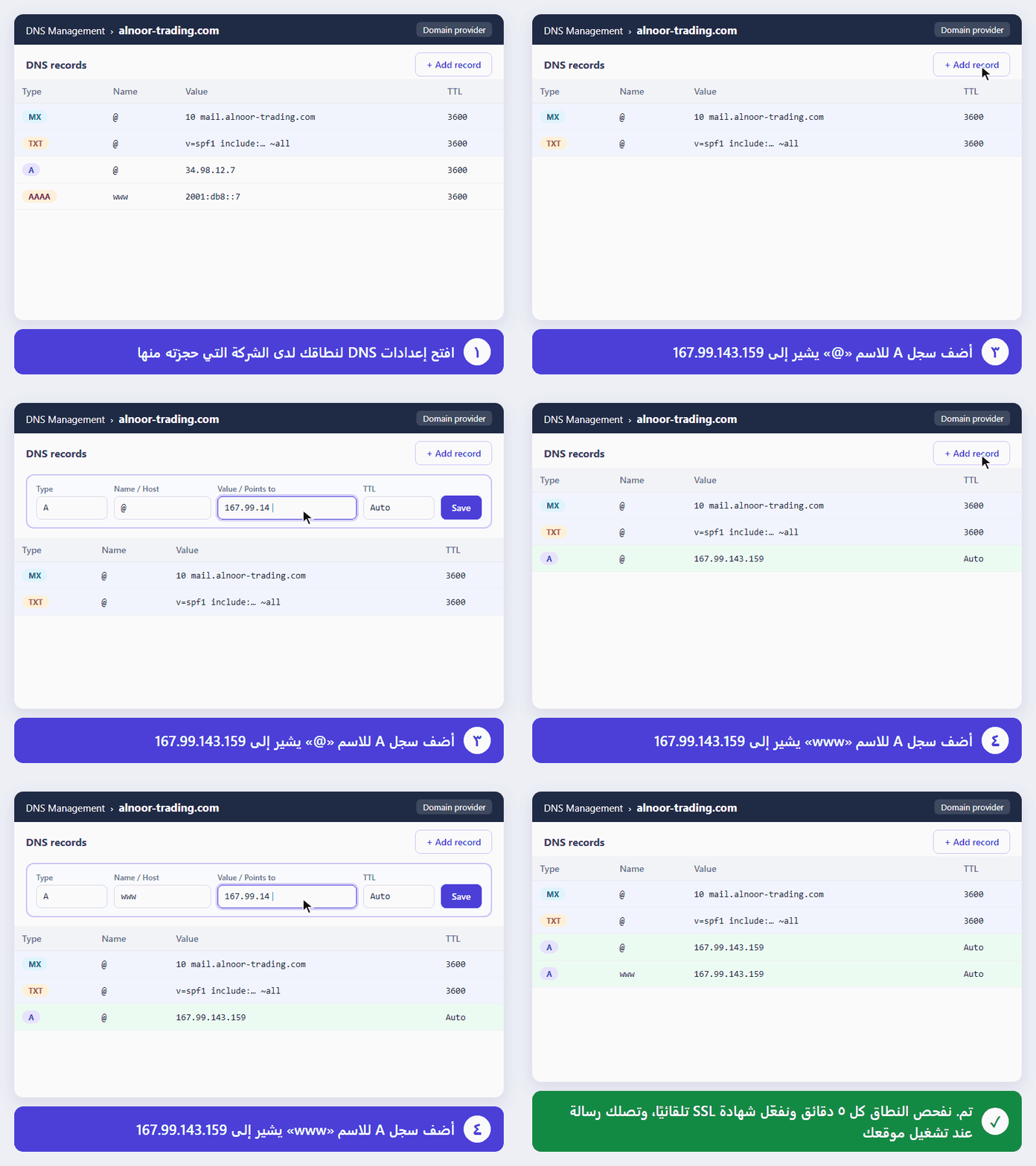
1. Ask for the connectionSend your domain to the Intagya team with the website design service, and you receive a "Connect your domain" message with the steps and the address to use.
2. Delete the old onesDelete any old A or AAAA record on "@" or "www" (an old hosting, for example).
3. Add an A record for @Type A, name @, value 167.99.143.159, TTL automatic or 3600.
4. Add an A record for wwwType A, name www, the same value 167.99.143.159.
5. Keep your mail recordsDo not delete MX and TXT records; they belong to your company email.
6. Wait for activationWe check the domain every 5 minutes, issue the SSL certificate and switch the site on automatically, and you receive a "Your website is live" message.
Step by step: delete the old records, then add the two A records for @ and www.
If you use Cloudflare
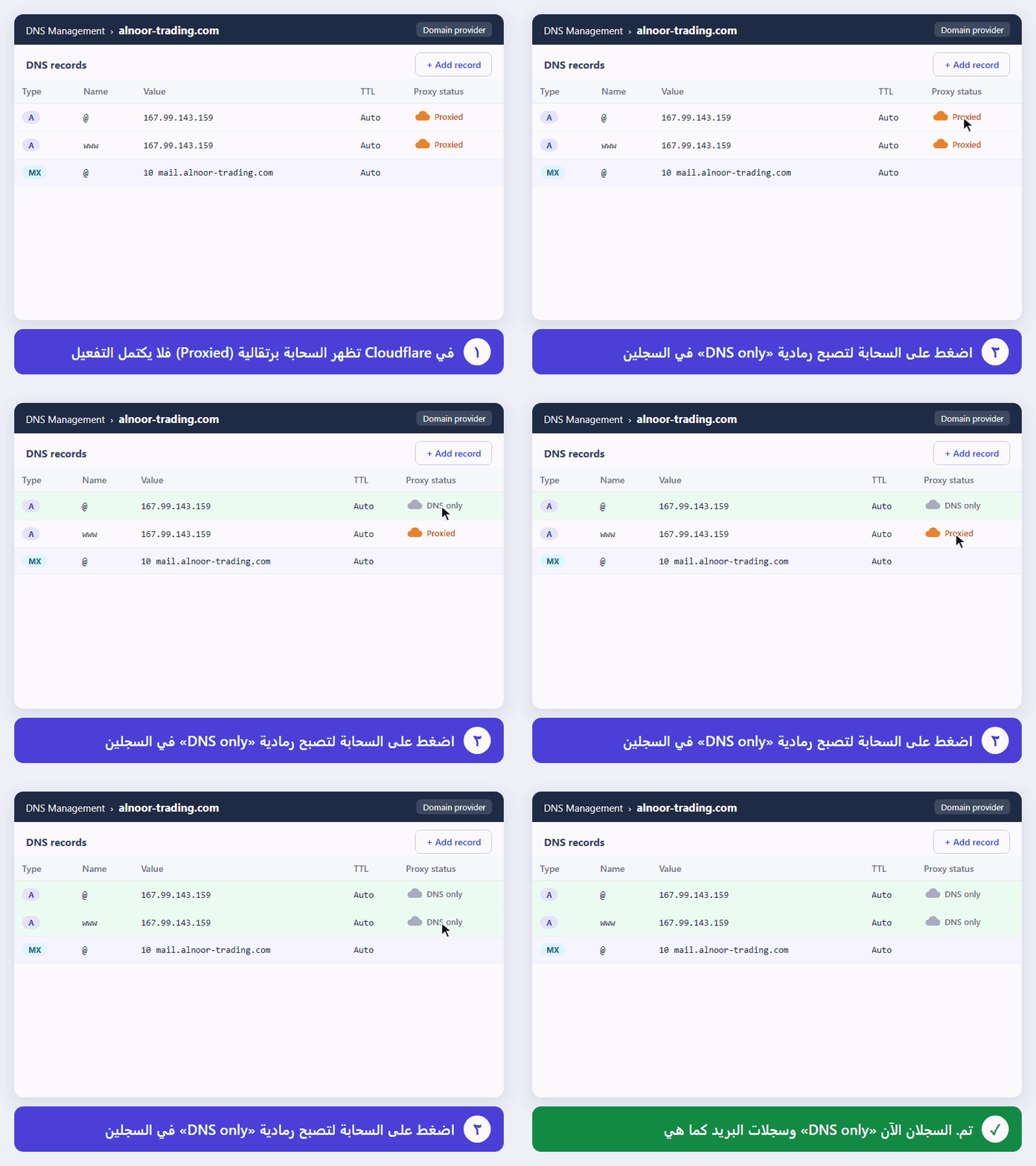
Set the two website records to "DNS only" (grey cloud), not "Proxied", or activation will not complete.
Key sections
Why?In "Proxied" mode requests do not reach our servers directly, so we cannot verify the domain or issue the SSL certificate.
What to doOn the DNS page click the cloud on the @ and www records so it turns grey, "DNS only", then save.
And the mail records?MX and TXT records need no change.
Click the orange cloud on each record so it turns grey, "DNS only".
Connect your company email to your domain
For email hosting customers: the administrator adds the domain from "Intagya Mailbox > Hosting", then you publish five records at your domain provider, and addresses like name@company.com work inside the system.
Key sections
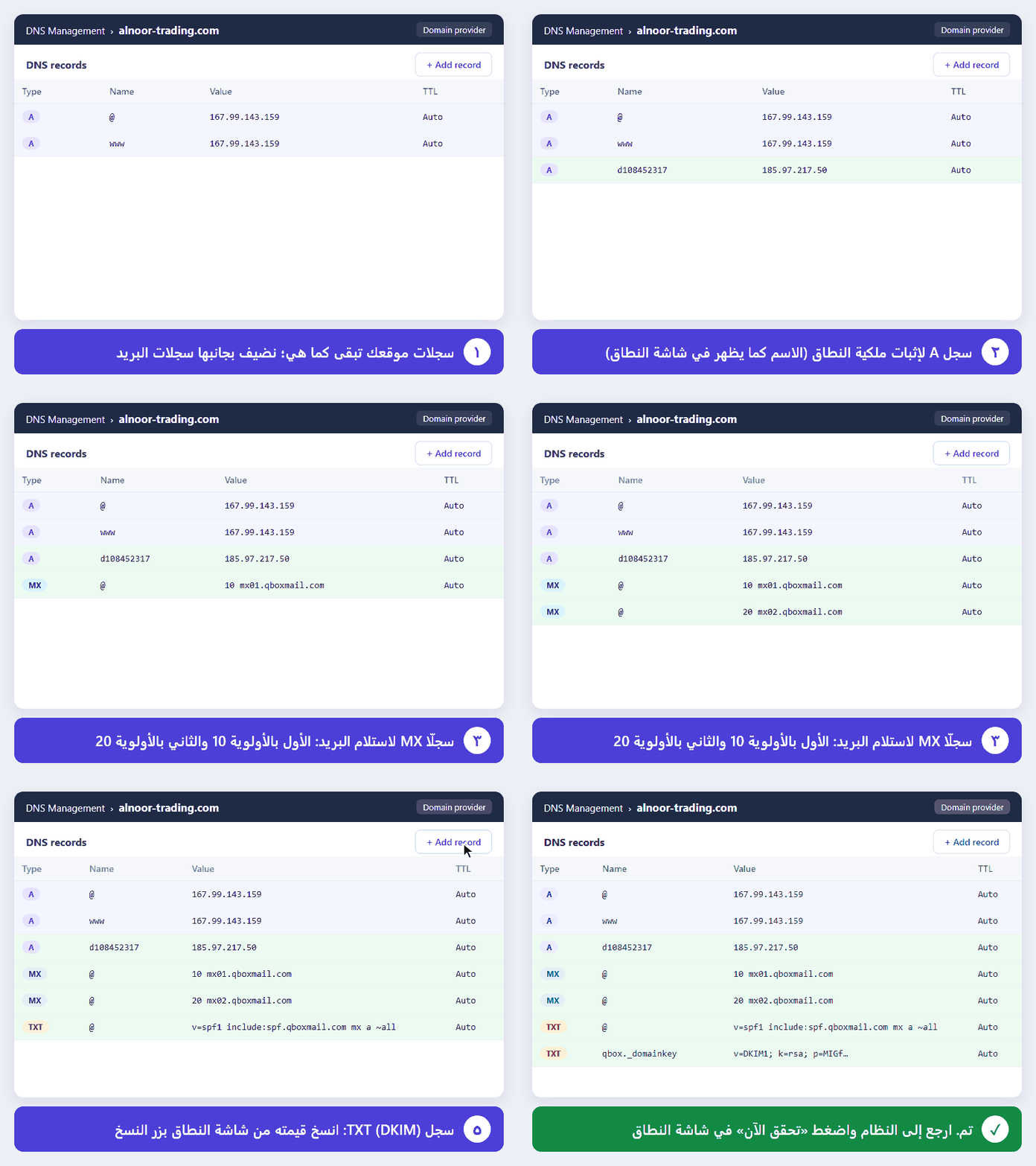
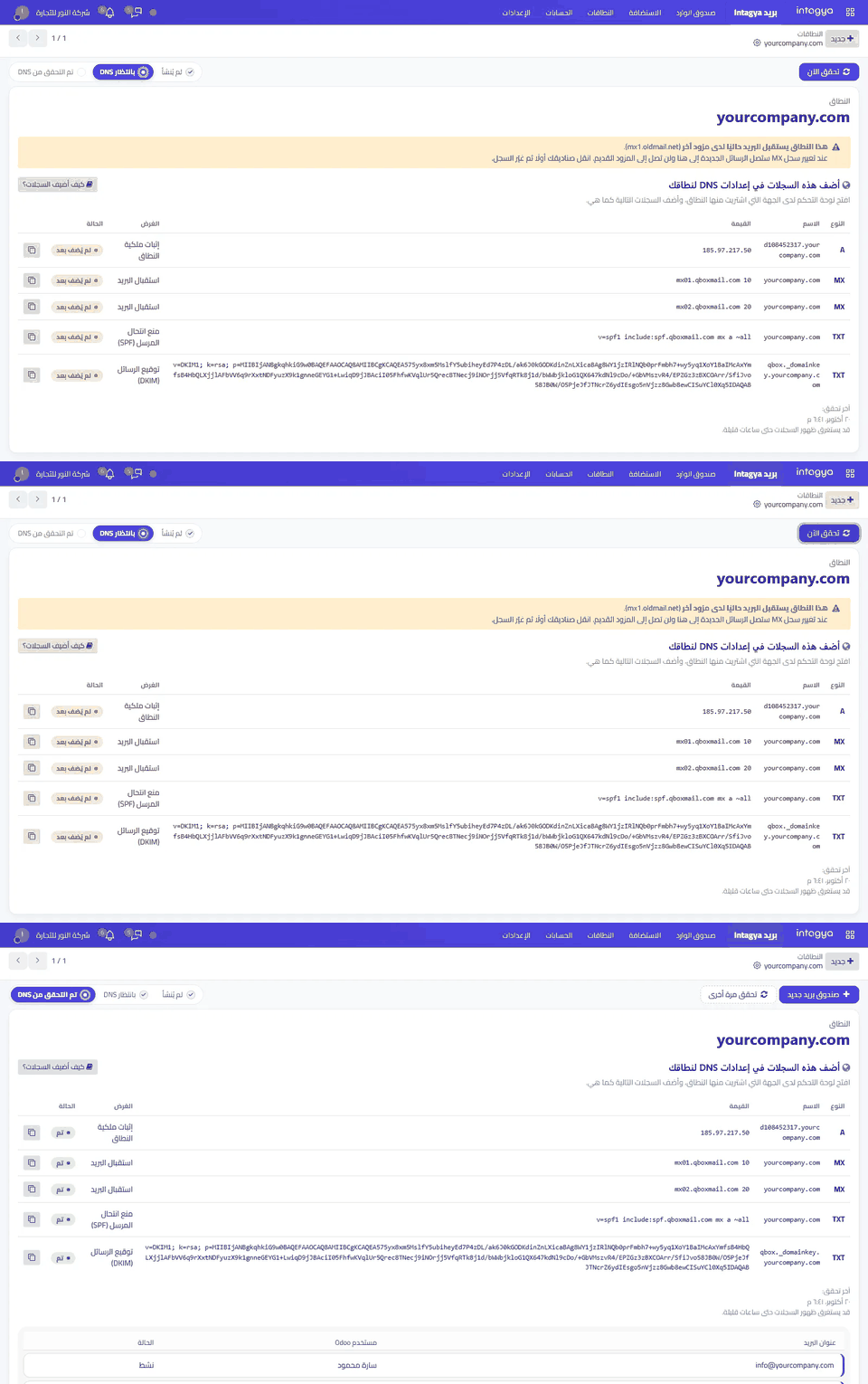
1. Add the domain in the systemFrom "Intagya Mailbox > Hosting" press "Add a domain", type your domain and save it, then press "Set up the domain"; the status becomes "Awaiting DNS" and the records show with their values.
2. Ownership A recordName: d followed by your domain code as the domain screen shows it (e.g. d108452317), value 185.97.217.50.
3. Two MX recordsBoth on the domain itself (@): the first 10 mx01.qboxmail.com and the second 20 mx02.qboxmail.com (the number is the priority). Delete any old MX record; if your mail is with another provider today, make that the last step, after the mailboxes are ready.
4. SPF TXT recordOn @ with the value v=spf1 include:spf.qboxmail.com mx a ~all. A domain has only one SPF record; if you already have one, add include:spf.qboxmail.com inside it instead of creating a second one.
5. DKIM TXT recordName qbox._domainkey; the long value shows on the domain screen once ownership is proven, copy it exactly.
Copy, do not typeEvery record on the domain screen has a copy button; use it instead of typing the values to avoid mistakes.
Adding the five mail records at the domain provider, as the domain screen shows them.
Check and troubleshoot
How to know the connection is complete, and what to do if activation takes longer.
Key sections
MailPress "Check now" on the domain screen; each record shows "Done" or "Not added yet". Once ownership is proven the domain becomes "Ready" and you can create the mailboxes.
WebsiteYou receive a "Your website is live" message and your site opens on your domain with the security lock.
Not detected yetWait a little and check again; the change can take up to 48 hours to spread.
Record nameMost providers add the domain for you: type only @, www, d108452317 or qbox._domainkey, not the full name.
The website does not openMake sure there is no other A or AAAA record on @ or www, and that Cloudflare is set to "DNS only".
Still need help?Message Intagya ERP Support from inside the system and attach a picture of your DNS page.
On the domain screen press "Check now": each record turns to "Done" and the domain to "Ready".
13. The Intagya mobile app
Your company in your pocket: chats, meetings and mail, employee self-service and your department's work, in one app. Each user sees only what their rights in the system allow.
Install and sign in
Download the app from intagya.pro/app/download, type your system address, then your email and password. The app remembers you and follows your language in the system (Arabic or English).
Home screen
Three sections: "Personal" for chats and mail, "Human resources" for employee self-service, and "My department" for what your rights allow.
Key sections
PersonalChats (with the unread count and a green dot during a call) and mail.
Human resourcesAttendance, time off, payslips, expenses and calendar.
My departmentTasks, CRM, quotations, invoices, purchases, field sales and diagnosis, as your rights allow.
Chats and groups
Direct chats, chats between several people and team groups, with instant messages, files and photos, "is typing..." and read ticks.
Key sections
ChatsYour direct chats and chats between several people, with search and "Unread", and + for a new chat.
Groups"My groups" and "Discover groups" to join one, and + to create a group.
In a chatInstant messages, photos and files, "is typing...", and ✓✓ when the others have read your message.
Calls and meetings
Voice and video calls and a new meeting in one tap, a full-screen ring for incoming calls, and a floating window that stays above any screen. App users and browser users talk in the same call.
Key sections
New meetingThe "New meeting" button under the search: pick who to invite and start a video meeting at once; each invitee's phone rings.
Incoming callA full screen with Answer and Decline, even when the phone is locked.
Floating windowShrink the call so it floats above any screen in the app, or above other apps when you leave it.
SpeakerA button at the top of the call to switch between the loudspeaker and the earpiece.
Between any two networksCalls work between a phone on mobile data and a computer on Wi-Fi, through the Intagya relay server.
Notifications with sound
An Intagya sound for every message in your chats, a ringtone for calls, and alerts for tasks, activities and appointments. No alert for a chat that is already open on your screen.
Key sections
Two soundsA short Intagya sound for messages and a ringtone for calls.
Tap the alertIt opens the chat, task, opportunity or appointment itself.
SilentTurn the message sound off in "My account" if you like; alerts still arrive.
Mail
Your mailbox inside the app: inbox, folders, reading, replying and sending, for users with an active mailbox.
Attendance
Check in and out with one swipe, only from allowed work sites when the admin set them, with today's hours and the month's total, and an automatic check-out if you forget.
Time off
Request leave, choose its type and days, see your balance before and after sending, and follow the status of your requests.
Payslips
Your payslips with gross and net pay and the lines of each slip.
Expenses on the phone
Record an expense, attach the receipt photo from the camera or gallery, and follow its approval and payment.
Calendar on the phone
Your appointments and reminders, in sync with the system calendar: add or edit an appointment and choose when to be reminded.
Field sales
For sales reps: van stock, customers, visits, selling, invoicing and collecting at the customer, with a summary of the day.
My tasks
Create and edit tasks, move them between stages and finish them, with deadlines, comments and activities.
CRM on the phone
The opportunity pipeline by stage: new opportunity, edit, move between stages, won or lost, with comments and activities.
Quotations, invoices and purchases
Create a quotation or a purchase order with its lines, review invoices, and confirm or post a document from your phone.
Diagnosis
For managers: where the company is stuck and the steps to fix it, as in the Diagnosis tab of the Smart Dashboard.
My account
Change your photo, name, email, password and the app language, turn the notification sound on or off, and sign out.
Key sections
Photo, name and emailThey change across the system, and in your employee file too.
PasswordEnter the current one and then the new one (at least 8 characters); the app stays signed in.
LanguageArabic or English, for the app and your system account.
14. Artificial intelligence (intagya AI)
A paid add-on that works inside the system in your language: ask about your company's figures and get a clear answer, or ask it to do work for you, such as a draft invoice or a follow-up on a sales opportunity. Everything runs with your own rights, and nothing is posted or sent without you.
The assistant on the home screen
A box under the greeting, before the apps: type your request and send it, and the conversation opens on the side. The "Assistant" button in the top bar opens the same conversation from any screen.
Key sections
Type and sendThe send button or Enter. Shift with Enter starts a new line.
Quick suggestions"Create an invoice" and "Log a call" type the start of the request for you to finish; "Today's sales" and "My activities today" are ready questions sent at once, as your rights allow.
One conversation across the systemOpen the invoice or the opportunity and the conversation stays beside it; on wide screens the page makes room for it.
Who sees itA workspace that can ask right now: a running trial, a paid package or a connected own key. When the subscription ends, the box and the button disappear.
A draft invoice from a written request
Write the customer, product, quantity and price, and the assistant creates a customer invoice in draft and shows it in a card with tax and total, with an "Open draft" button. It never posts or sends it.
Key sections
Example"Create an invoice for Al Ofoq: 3 consulting hours at 500 an hour".
PriceWith no price, the sales price on the product card is used, and the tax comes from the product.
A line with no productYou can write a line as a description with an explicit price, such as "system installation at 2000".
When two names matchIf more than one customer or product has that name, it lists them and asks you, and creates nothing.
What it does not doIt never posts or sends the invoice or registers a payment, and it does not create a new customer or product. Up to 20 lines per request.
Log a call and schedule a follow-up
Tell it what happened with the customer, and it prepares a note on the opportunity and an activity on the date you gave. Nothing is saved until you press "Confirm".
Key sections
Example"I called the Al Ofoq opportunity, they asked for a quote for 20 users. Log it and set a follow-up on Thursday".
Activity and dateA call, meeting, email or to-do, on a date written the way you say it: "Thursday" or "in a week". You are the owner.
ConfirmThe note goes into the opportunity's history and the activity is scheduled, with an "Open opportunity" button. Only the person who asked can confirm it.
EditThe proposal is dropped and your request goes back into the text box to correct it.
Questions about your figures
Sales, best-selling products, receivables and late payers, stock, opportunities, projects, team, diagnosis and your own work. Answers come from the system's data only, never estimated or invented.
Analyse the dashboard reports
An "Analyse" button on the Company overview cards, on the Diagnosis and on each of its departments: it reads the report and tells you the three things that matter, where the problem is and what to do this week.
Analyse a sales opportunity
On the opportunity form, an intagya AI button next to "Probability": the chance of winning, what helps and what hurts, and the next steps.
Packages and quota
Every question or request counts as one question from the month's quota, and what is left shows at the top of the conversation. "Confirm" and "Edit" are free, and a failed answer is not counted. When the quota runs out, buy extra questions or move to a bigger package.
Connect your own key (API)
With the "Your own key" package, intagya AI runs on your own OpenAI or Anthropic key, with no question limit, and your provider bills the usage. The package costs 3 USD a month or 30 USD a year.
Key sections
Who sets it up?The system administrator only, after subscribing to the package. Other users see a message asking them to contact the administrator until the key is connected.
Create the key at the providerOpenAI: the "API keys" page on platform.openai.com, then "Create new secret key". Anthropic: the "API keys" page on console.anthropic.com, then "Create Key". Copy it as soon as it appears; your provider account needs credit.
Open the connection screenOn the Dashboard press the "intagya AI" button at the top; the "Connect your own key" panel opens. The "Assistant" button and the home box appear once the key is connected.
Pick the provider and paste the keyThen "Check and list models", pick a model and press "Save". The key is stored encrypted in your company database only, and only its last 4 characters are ever shown.
After connectingThe "Your own key" badge shows with no counter. Press the gear to change the key or model; "Disconnect" deletes the key.
Error messages"The provider refused this key": create a new key. "Your provider credit is used up": top up. "This model is not available to your key": pick another. "Your provider couldn't answer right now": try again in a minute.
Rights and privacy
The assistant works with the employee's own rights, and shows only in a workspace with an active subscription. Figure questions send aggregated figures only; action requests send your request text with the matching customer and product names.
Setting up and activating services
Illustrated steps to activate the services that need a setup from you: backup, company email, your own domain, WhatsApp and social media, and e-invoicing.
Daily backup to Google Drive
Keep a daily copy of your company data (database and attached files) on your own Google Drive, automatically. Setup takes a few clicks with nothing to install, and the system only ever sees the files it creates in the "intagya-backup" folder.
Who sets it up?The system administrator only. Open "Backup to Google Drive" from the Settings menu.
Start the trial or subscribePress "Free trial" to start at once, or "Subscribe" and pay to activate the service.
Connect Google DrivePress "Connect Google Drive"; a Google page opens in a new tab, pick your account and allow access. Then return to the system and press "Refresh".
Set the scheduleChoose the daily backup time, the timezone and how many days to keep, then press "Save schedule".
Check the resultPress "Backup now" for an immediate copy, and follow every backup and its status in the "Last backups" tab.
Email hosting on your company domain
Subscribe to email hosting from inside the system and create addresses like sales@yourcompany.com for your staff, or link your current mailbox for free. Every step is on one screen the administrator opens: "Intagya Mailbox > Hosting". After that every employee uses their mailbox from the "Inbox" (see the "Mailbox" section).
1. Choose the plan and the number of mailboxesOpen "Intagya Mailbox > Hosting" and choose the plan: "Basic" with 8 GB or "Business" with 25 GB; each plan shows its price on the screen. From 15 mailboxes the 25 GB mailbox costs less automatically. Set the number of mailboxes and choose "Monthly" or "Yearly" (a year costs 10 months); the total shows at once.
2. Subscribe and payPress "Subscribe and pay" and the payment page opens in a new tab. After paying, come back and press "Refresh": the message "Email hosting is active" shows with the number of mailboxes and the next renewal date.
3. Add your company domainPress "Add a domain", type your domain (e.g. yourcompany.com) and save it, then press "Set up the domain" to see the records to add at your domain provider.
4. Publish the DNS recordsThe domain screen shows five records with their full values: an A record for ownership, two MX records to receive mail, an SPF record and a DKIM record. The DKIM value shows once the domain ownership is proven, so start with the A record and press "Check now". Copy each value with the copy button next to it and add it as it is in the DNS settings at the company where you registered the domain (table below, and the illustrated steps in "Connect your domain").
5. Press "Check now"After adding the records, go back to the domain screen and press "Check now". Each record shows its status: "Done" or "Not added yet". The domain becomes "Ready" as soon as its ownership is proven (the A record), so you can create the mailboxes; finish the other records so your mail arrives and is sent safely. The records can take a few hours to appear, sometimes up to 48 hours.
If your mail is with another provider todayA yellow warning shows on the domain screen when the domain receives its mail at another provider today. You can create the mailboxes once ownership is proven, before changing the MX. Once you change the MX records, new messages arrive here and no longer at the old provider, so create the mailboxes and move your important messages first, then change the MX records last.
6. Create a mailbox for each employeePress "New mailbox" and choose "Hosted on your domain". Type the start of the address (e.g. sales) and pick the domain, then pick the user who will use the mailbox, type a password or press "Generate", then "Create". The dialog shows how many mailboxes of your subscription you use; when they are all used an "Add mailboxes" button shows.
7. Link an existing mailbox for freeHave email on Gmail, Outlook or another provider? Press "New mailbox" (or "Link an existing mailbox" before subscribing) and choose "Link an existing mailbox (free)". Type the address and the "App password", pick the user, then "Create". We find the server settings by ourselves; if we cannot, the server fields show so you can enter them as your mail provider shows them. You create the app password in the security settings of your mail account (on Gmail: Google Account > Security > App passwords, after turning on 2-Step Verification). Linking is free with no limit on the number of accounts, and does not count among the paid mailboxes.
Follow your mailboxes on one screenThe "Hosting" screen shows how many mailboxes of your subscription are in use, the subscription status with the next renewal date and amount, the domains and their status, and every mailbox with its type: "Hosted" or "Linked (free)". Each employee finds their mailbox in the "Inbox" under their own user.
8. Change the number of mailboxes or the planPress "Change the number of mailboxes". For more mailboxes or a bigger plan you pay only the difference for the days left in the current period ("Pay the difference"). For fewer mailboxes press "Save for the next renewal": the new number applies from the next renewal, so delete the extra mailboxes before then.
9. Renewal, and what happens if it is not paidFive days before the period ends the renewal invoice is raised, and the screen shows its amount with a "Pay now" button. If the period ends unpaid, email hosting is suspended and the hosted mailboxes stop, with a message showing the deletion date and a "Pay the renewal" button. 7 days after the suspension the mailboxes and their messages are deleted for good unless the renewal is paid. If you pay before then, the mailboxes work again automatically. Free linked mailboxes are not affected.
DNS records required for the mail domain
Type
Name
Value
Purpose
A
d108452317.yourcompany.com
185.97.217.50
Domain ownership (the number differs per domain)
MX
yourcompany.com
10 mx01.qboxmail.com
Receiving mail (first server)
MX
yourcompany.com
20 mx02.qboxmail.com
Receiving mail (backup server)
TXT (SPF)
yourcompany.com
v=spf1 include:spf.qboxmail.com mx a ~all
Sender protection against spoofing
TXT (DKIM)
qbox._domainkey.yourcompany.com
v=DKIM1; k=rsa; p=…
Signature of outgoing mail (copy the value from the domain screen)
These values are the same for every domain, except the ownership record name and the DKIM value: both differ per domain and show on the domain screen with a copy button. A domain has only one SPF record; if you already have one, add include:spf.qboxmail.com inside it instead of creating a second one.
Point your website to your own domain
Serve your company website on your own domain (e.g. company.com). You add just two records at your domain provider, then the system issues the SSL certificate automatically and the site goes live on your domain.
Tell us your domainSend the domain you want to the Intagya team to register it for your workspace, and we will give you the platform address (IP) you need.
Add two A recordsAt your domain provider add (or edit) two A records pointing to the address we gave you: one for the name "@" and one for the name "www". Set TTL to automatic or 3600.
Clear the old recordsDelete any old A or AAAA record on "@" or "www" (an old hosting, for example). Leave your email records (MX, TXT) as they are. If you use Cloudflare, set the two records to "DNS only".
Wait for activationWithin a short time the system verifies the records, issues the SSL certificate, and your site goes live on your own domain over a secure connection.
Connect a WhatsApp Business number to the Marketing Suite
To send and receive WhatsApp messages inside the system you need an app on Meta for Developers linked to a WhatsApp Business account, and a phone number not used in the WhatsApp phone app. The first steps are on Meta, the rest inside the system.
On Meta: create the appGo to developers.facebook.com with your company account, then "My Apps > Create App", choose the "Business" type and link it to your Meta Business account. From the app dashboard add the "WhatsApp" product.
On Meta: add the number and copy the IDsFrom "WhatsApp > API Setup" add your company phone number and confirm it with the code. Copy "Phone number ID" and "WhatsApp Business Account ID" from the same page, and "App ID" and "App Secret" from "App settings > Basic".
On Meta: create a permanent tokenThe temporary token on API Setup expires within 24 hours. In business.facebook.com > "Business settings > Users > System users" create an Admin system user, assign it the app and the WhatsApp account, then "Generate new token" with whatsapp_business_messaging and whatsapp_business_management, and copy the token.
In the system: add the WhatsApp accountFrom "Marketing Suite > Configuration > WhatsApp Accounts" press "New", enter the name, WhatsApp Business Account ID, Phone Number ID, App ID, App Secret and Access Token, then save.
On Meta: connect the webhookCopy the "Callback URL" and "Webhook Verify Token" from the account screen in the system, paste them in your Meta app under "WhatsApp > Configuration > Webhook > Edit", then "Verify and save". Then press "Manage" and subscribe to the "messages" field so customer messages reach the system.
In the system: test and syncPress "Test Connection" to check the details, then "Sync Templates" to fetch your Meta-approved message templates. The first message to a customer must use an approved template; after they reply you can write freely for 24 hours.
Connect Facebook, Instagram, LinkedIn, X and YouTube
Each network needs a developer app you create once on its site, with your system's return link in it; then you copy its keys into the system and link your pages with one click. Replace yourcompany.intagya.pro in the links below with your system address as it shows in the browser.
Facebook and Instagram (Meta)On developers.facebook.com create a "Business" app and add "Facebook Login for Business". In its "Settings" add to "Valid OAuth Redirect URIs": https://yourcompany.intagya.pro/social_marketing/facebook/callback and https://yourcompany.intagya.pro/social_marketing/instagram/callback. The Instagram account must be a business account linked to a Facebook page. Copy the App ID and App Secret.
LinkedInOn linkedin.com/developers press "Create app" and link it to your company page. Under "Products" add "Sign In with LinkedIn using OpenID Connect" and "Share on LinkedIn". Under "Auth" add to "Authorized redirect URLs": https://yourcompany.intagya.pro/social_marketing/linkedin/callback, and copy the Client ID and Client Secret.
XOn developer.x.com create a project and an app; in "User authentication settings" turn on OAuth 2.0 as a "Web App" with "Read and write". Set the "Callback URI" to https://yourcompany.intagya.pro/social_marketing/twitter/callback and copy the Client ID and Client Secret. (Posting to X needs an API plan that allows writing.)
YouTube (Google)On console.cloud.google.com create a project, enable "YouTube Data API v3" and set up the "OAuth consent screen". Under "Credentials > Create credentials > OAuth client ID" choose "Web application", add to "Authorized redirect URIs": https://yourcompany.intagya.pro/social_marketing/youtube/callback, and copy the Client ID and Client Secret.
In the system: paste the keysFrom "Settings > Social Marketing" paste each app ID and secret in its network section (Facebook, LinkedIn, X, YouTube), then press "Save". For web push press "Generate Keys" in the same page.
In the system: link your pagesFrom "Marketing Suite > Social > Accounts" press "Link Account" on the network card, sign in on the network and accept the permissions. You come back to the system with your pages under "Accounts", ready to publish.
Government e-invoicing
The system connects to government e-invoicing. It stays off until your country's connection details are complete, then switches itself on. Choose your country:
Egypt: Tax Authority (ETA)
What you need: The branch code and identifier, and the activity type, as registered with the Egyptian Tax Authority.
From "Accounting > Configuration > Journals" open the "Sales" journal.
On the "Advanced Settings" tab, in the "Electronic Data Interchange" section, enable "Egyptian Tax Authority".
Fill the "EGYPTIAN ETA SETTINGS": Branch, branch identifier and ETA Activity Code.
Once the details are complete, invoices start sending to the authority automatically.
Saudi Arabia: ZATCA
What you need: Completing the sales journal onboarding with ZATCA to obtain the production certificate (CSID).
From the Saudi accounting settings, run the onboarding wizard for the sales journal.
Enter the establishment details and the OTP from the Fatoora portal; the production certificate (CSID) is then issued.
Once the certificate is issued, invoices are signed and sent to ZATCA automatically.
Jordan: JoFotara
What you need: The JoFotara credentials (client id and secret) at the company level.
From "Settings > Accounting > Electronic Invoicing" enter the company's JoFotara credentials.
Once complete, sending to JoFotara is pre-selected automatically in the invoice Send window.
User experience and security in Intagya ERP
Easy to use, fully in Arabic
An intuitive interface built for minimum clicks, in proper Arabic with the right business terms.
Strict security and user rights
Fine-grained access rights so each employee sees only what their job needs: the storekeeper sees quantities, while the purchasing manager sees prices.
Audit trail
Every change in the system records who did what and when, which prevents tampering and keeps everything transparent.
Flexible data import
Bring all your existing data in from Excel files in one step, and work smoothly on computers, tablets and phones from anywhere.