
How do you set a new employee's permissions in a minute without locking them out of their work?
| Intagya ERP

Pick the employee's job and every app is set in one click, then adjust what is special to them. In Intagya ERP you see one row per app with its real levels, and a summary of what this person can do and will not see, before you save.
A new employee started on Sunday morning. Her manager asked for the first invoice, she opened the system and could not find Finance. She messaged a colleague, the colleague messaged the manager, and it ended with manager rights so work could move. A month later she could see the payroll.
Nobody meant any harm. A hard screen pushes you to one of two bad answers: give more than needed, or lock someone out of their work.
Why do managers give staff more permissions than they need?
Because the question they get is technical. You read Team leader and Officer and you cannot tell what happens when you save. Under the pressure of the day you pick the highest one so nobody calls you.
I do not think the answer is training every business owner on permissions. The answer is to ask something they already know: what is this person's job?
How do you start from the job instead of a list of permissions?
Open the user from Settings. The Permissions tab offers ready jobs: General manager, Accountant, Salesperson, Marketing employee, Storekeeper, Human resources and Employee. Press one and every app is set, with a summary beside it of what this person can do and will not see.
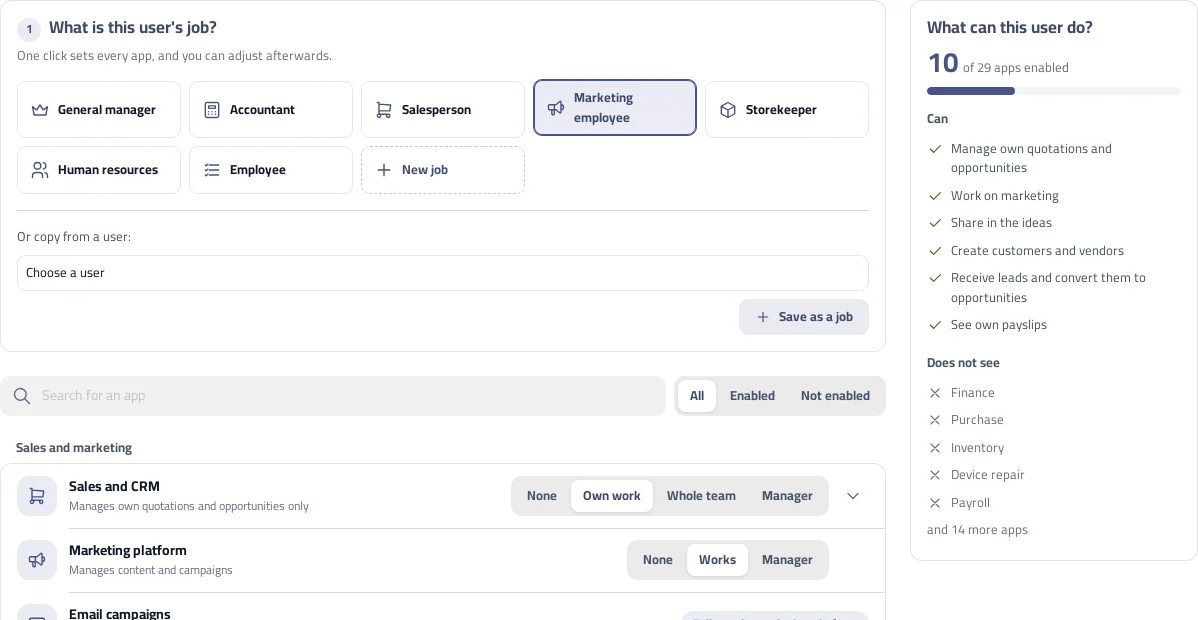
If someone already does the same work, copy their permissions. If a setup keeps repeating in your company, save it as a new job and use it for the next hire.
What does each level inside an app mean?
Each app has one row with its real levels. Sales offers None, Own work, Whole team and Manager. Inventory offers None, Works and Manager. Under the name a short sentence says what your choice means right now, so there is nothing to memorise.
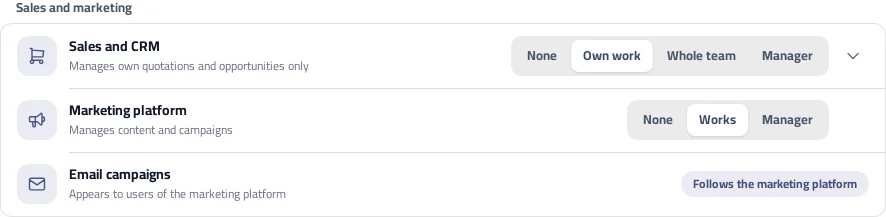
Some apps have two levels and some have five. A uniform grid would look nicer, but an honest screen beats a level that does not really exist.
How do you make sure nobody is locked out of their work?
Read the summary before saving, then ask the employee to finish one full task on day one: the accountant issues an invoice and records a payment, the storekeeper receives a shipment. Five minutes show what a mistake in front of a customer would have shown.
We ran every ready job through its full daily flow before releasing the screen. Your company still knows things we do not, so adjust a job to fit how you work.
What about fine options like discounts and converting a lead to an opportunity?
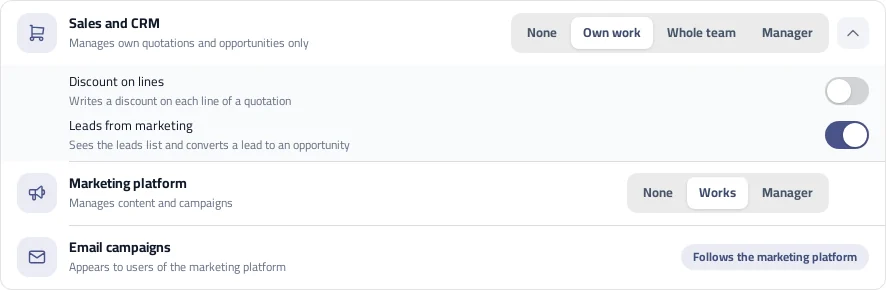
An arrow beside Sales opens the extra options. There you allow a discount on lines, and you open the leads list for a marketing employee with its Convert to opportunity button. This opens the list for that one person, and the rest of the team stays as it is.
Tomorrow morning open the users list and review just three people. Read each summary, and if an accountant sees what is not theirs, press their job and save.
Give System settings only to whoever really runs the system: it lets them change the permissions of others.
FAQ
Do my current employees' permissions change by themselves?
No. The screen shows what they already have, and nothing changes until you pick a job or a level and press Save.
What happens if I apply a job to someone with many permissions?
A job sets the whole user, so what it does not name is removed. Check the summary before saving, or press Cancel.
Who can change permissions?
Only whoever manages users in your company. A regular employee cannot open this screen.
Why is a level locked on one of the apps?
Another permission the employee has forces it, such as System settings. Turn that off and the level can be chosen again.
Is this your business?
Want to see IntagyaERP on your own workflow?
Book a demo, tell us how your business runs, and watch the system handle a real scenario from your company.
Book a demo