
Can I move my data from Excel or my old software into a new ERP?
| Intagya ERP
Yes. Export your data from the old program to an Excel or CSV file, then import it into the new system: match the file's columns to the fields and run a test before the real import so errors show up first. Start with customers and suppliers, then products, then stock quantities, then opening balances. Years of old invoices usually do not need to move at all.
The owner of an office supplies business has been putting off a new system for a year. Not because of the price. Because of an Excel file with two thousand customers and three thousand products, and the thought of typing them in one by one.
She will not have to type them one by one. She will have to tidy them before the move.
Do I have to type all my data in again?
No. Most lists import from an Excel or CSV file: customers, suppliers, products and prices, stock quantities. From the list of any record you will find an “Import records” action to upload your file.
Manual entry is left for the small things: company settings, taxes, bank accounts.
Which data should I move, and which should I leave behind?
Move what you need to work tomorrow morning, not everything you recorded over ten years.
- Move: customers, suppliers and contact details.
- Move: products with sale prices and costs.
- Move: current stock quantities, after a real count.
- Move: opening balances, including what each customer owes and what you owe each supplier.
- Leave: past years' invoices and their detailed movements.
I will be blunt: moving all the old history takes weeks and drags its old mistakes along. Keep a copy of the old program or its files for reference, and start the new system clean from a set date.
In what order should I import my data?
In an order where each step finds what it needs from the one before:
- Customers and suppliers, because everything else links to them.
- Product categories, then products.
- Stock quantities per product and per warehouse.
- Opening balances, with your accountant: customer debts, supplier bills, bank and cash.
Import products before their categories, or balances before customers, and you will be fixing your imports afterwards.
How do I avoid import errors?
Clean the file before you upload it. Nothing saves you more time.
Look for the same customer under two names, “Al Noor Est.” and “Al Noor Trading”. Look for phone numbers written in different formats, and prices stored as text. Then delete the columns you do not need.
When you upload, you match each column in the file to a field in the system, then click Test before Import. The test lists errors by line without saving anything, so you fix the file and try again.
Start with just twenty lines from each file. If they come in the way you want, upload the rest.
How long does moving the data take?
It depends on how clean your files are more than how big. A tidy customer file of two thousand lines can import in minutes. A messy one of two hundred lines can take a day of cleaning.
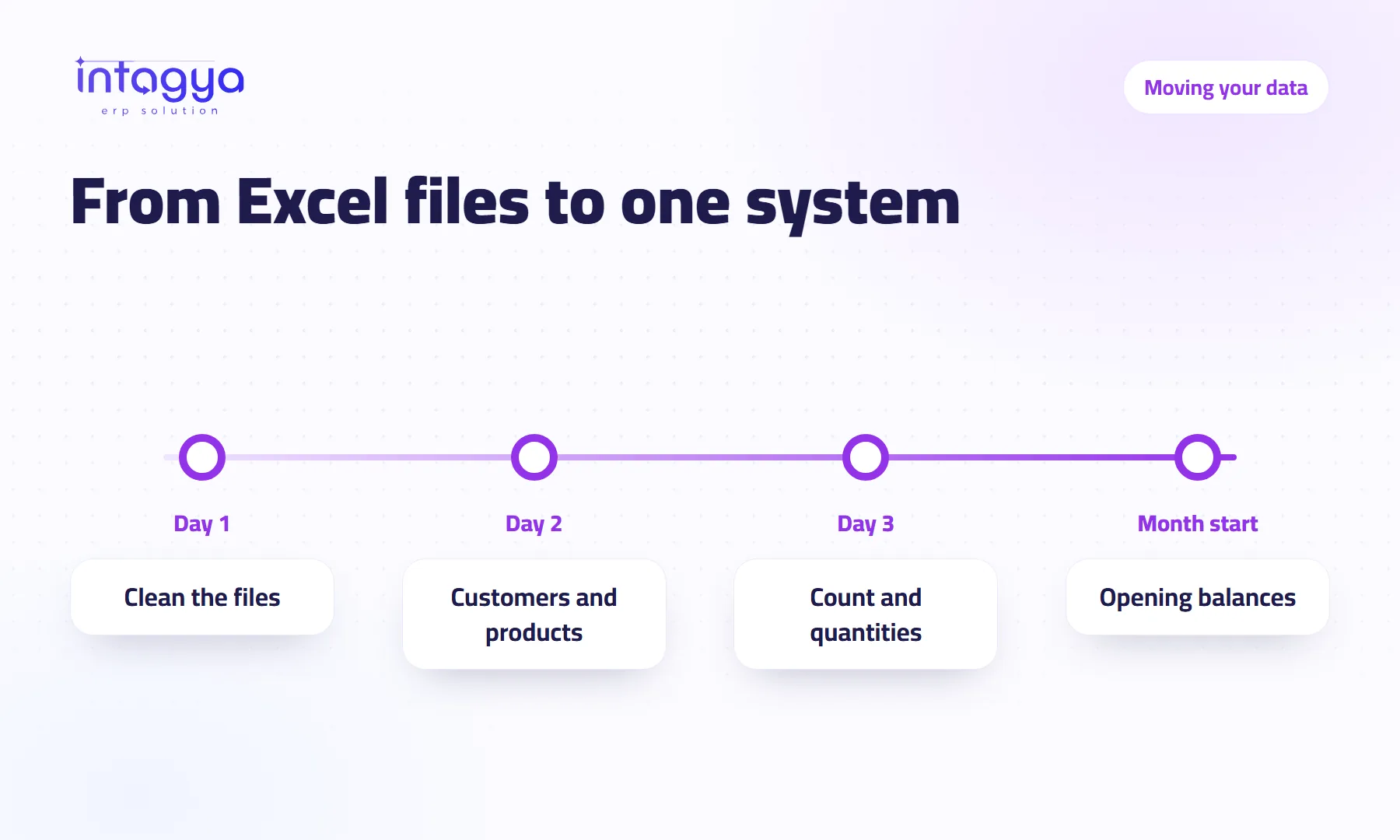
A made-up example for a small business: one day to clean the files, half a day to import and review, one day to count stock before entering quantities. Pick the start of a month for the switch, so opening balances are clear.
Should I switch off the old software straight away?
Do not delete it. Stop recording new transactions in it from the switch date and keep it read-only for two or three months. You will need it when a customer asks about an old invoice, or when the accountant reviews last year.
How does Intagya ERP make the move easier?
In Intagya ERP you start with a workspace built from your sector's template, with no sample data to clean out. The main lists import from Excel or CSV with column matching and a test before saving, and sales, stock and accounting share one system, so an opening balance entered once is seen by everyone. The user guide walks through each app with pictures.
Today, export your customer list from your current program to Excel and look for duplicates. That is the first hour of the move, and you can do it before signing up for anything.
FAQ
Which file formats can I import?
Excel files and CSV files.
Can I import my old invoices?
You can, but we usually advise against it. Enter opening balances and keep old invoices in the previous program for reference.
What if I import wrong data?
Use Test before Import to see errors without saving anything, and start with a small sample so fixes stay easy.
Is this your business?
Want to see IntagyaERP on your own workflow?
Book a demo, tell us how your business runs, and watch the system handle a real scenario from your company.
Book a demo