
How do I put a barcode on products that do not have one?
| Intagya ERP
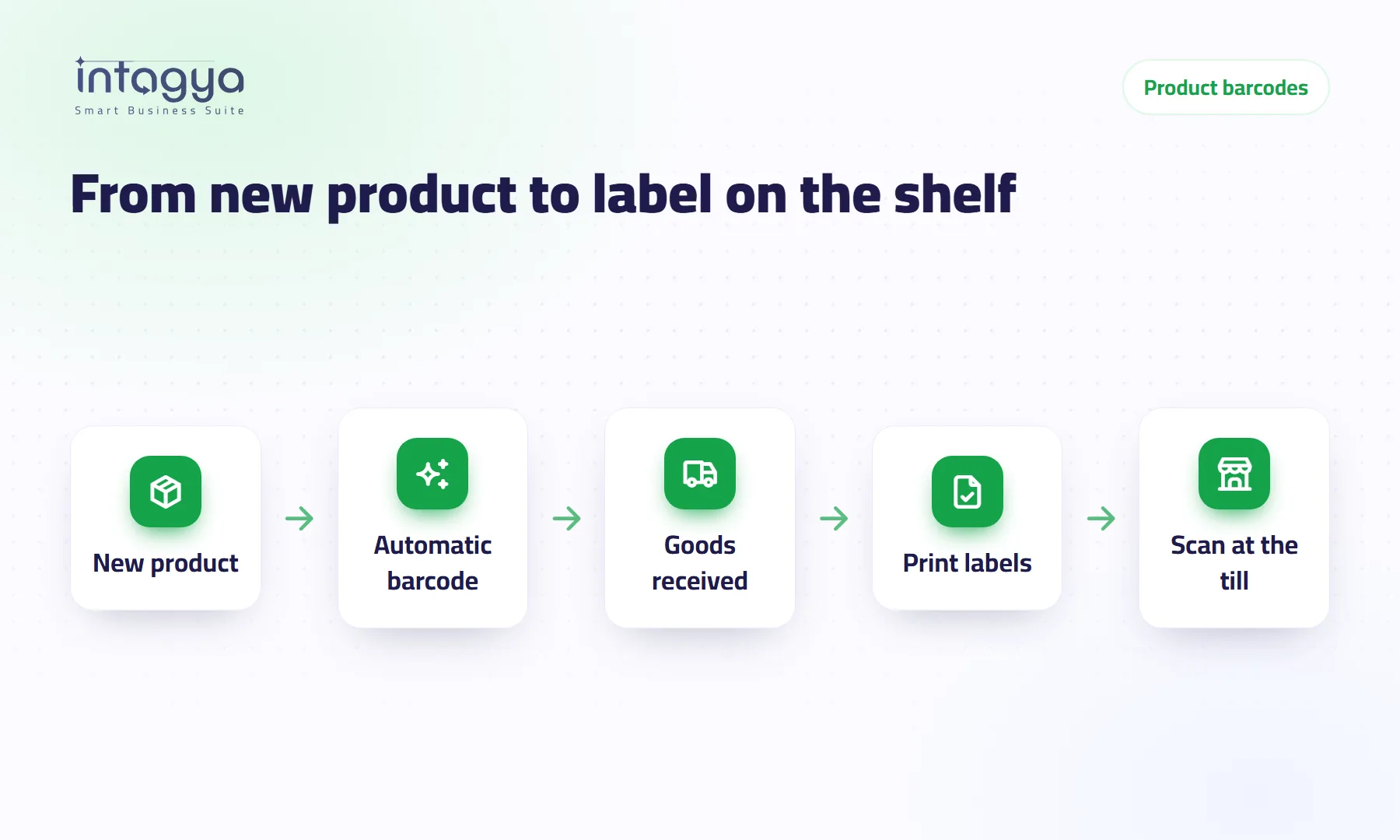
You do not have to make up numbers yourself. In Intagya ERP every new goods product gets a 13-digit barcode the moment you save it: today's date, then a serial number, then a check digit. For older products you select them in the list and choose “Generate barcode”. Then you print labels from the product screen or from the receipt and stick them on the goods.
A spice shop sells honey and herbs in jars it fills itself. At the till the cashier types the item name into search, three kinds of honey with similar names come up, and the cashier picks one and hopes. At the end of the month the stock on the shelf does not match the system, and nobody knows where the gap came from.
The cashier is not the problem. The goods have no barcode.
Why do I need a barcode on goods I pack myself?
Because a scanner does not misread a name. When the cashier scans the label, the exact product comes up with its price, not one that looks like it. A small mistake at the till becomes a stock count gap, and then an awkward question for the staff.
There is a quieter gain too: speed. A queue of five customers at the busy hour moves much faster when nobody is searching for item names.
Goods from a factory usually arrive with a barcode. What you fill, cut or bundle yourself, and what you buy from small suppliers, needs a barcode from you.
How does a new product get a barcode without me typing it?
It happens on save. Create the product, set its type to “Goods” and save, and the “Barcode” field fills with a 13-digit number. Take 2610290010009:
- The first six digits, 261029, are the creation date: 29 October 2026.
- The next six are a serial number that never repeats.
- The last digit is a check digit the scanner uses to confirm it read the label correctly.
If you type a barcode yourself, or scan the supplier's barcode before saving, that one stays. Services such as delivery or installation get no barcode, since there is nothing to stick it on. And the system never gives a product a number another product already uses.
Worth knowing: numbers starting with 2 are reserved worldwide for use inside your own store. That fits your shop and warehouse perfectly. If you plan to supply a big retail chain, ask them first; some chains require a barcode registered to your company.
Can the barcode itself tell me the category?
Yes, if you give each category its own serial start. On the category screen, type a number in “Barcode serial start”: 1000 for food, say, and 5000 for household goods. Each category's products count up from its start, so the storekeeper can tell at a glance that 001023 is food and 005002 is household.
This is optional. A category with no start uses one shared serial for the company, and that is enough for most small shops.
I have hundreds of old products without a barcode. Do I enter them one by one?
No. Open the product list, select what you want or select all, then choose “Generate barcode” from “Actions”. Only products without a barcode get one, and a message tells you how many were filled. A product that already has the supplier's barcode is left as it is.
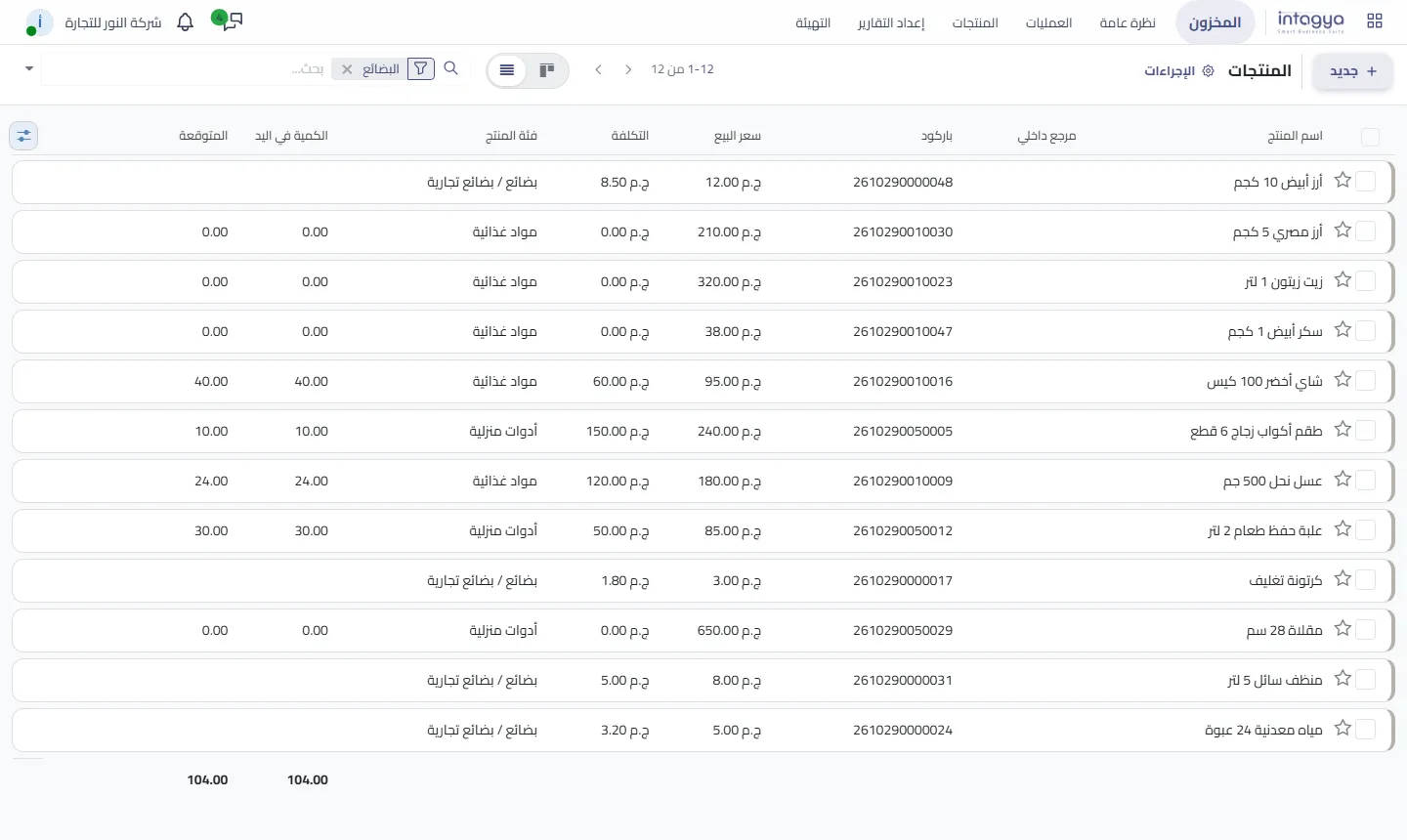
Why does this not happen to old products by itself? Because many shop owners want to review their items first: merge duplicates, drop what no longer sells. We think that is right, so the decision and the timing are yours.
Before generating barcodes for old products, delete or archive duplicates. A new barcode on a duplicate item means two different labels for the same goods on the shelf.
How do I print labels for the goods that arrived today?
From the receipt itself; it is the easiest way. Open the receipt, then “Actions › Print › Labels”.
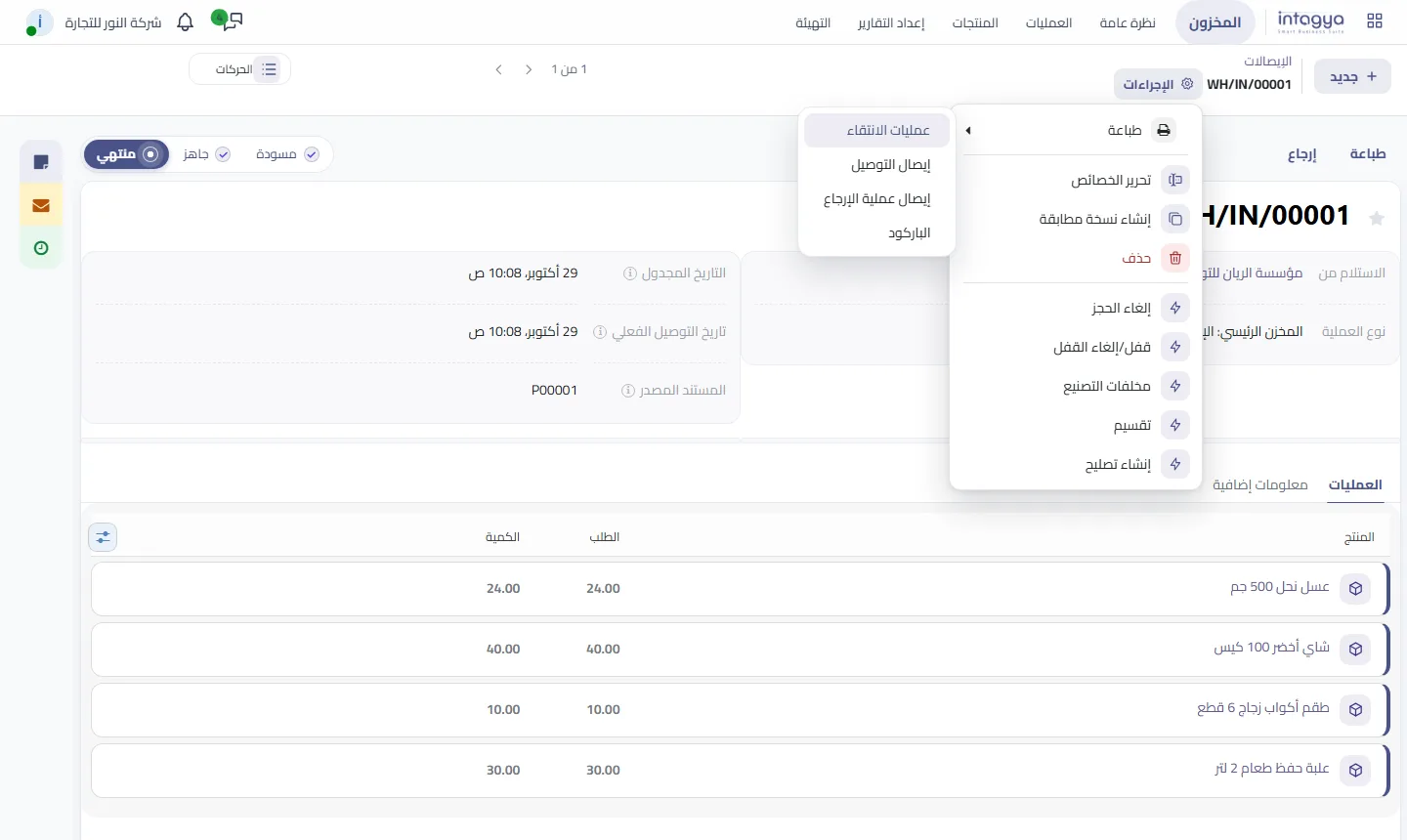
In the label window choose “Operation Quantities” and the system prints one label for every unit you received. 24 jars of honey arrived? You get 24 labels, no more. For a different number choose “Custom” and type it.
To print labels for one product or a selection, choose “Actions › Print Labels” on the product screen or in the list, and type the number of copies.
Which label layout should I pick, and do I need a special printer?
You do not need a special printer to start. A sheet of A4 sticky labels prints on any laser printer, and you pick the layout: 2x7 or 4x7 with the price, or 4x12 with or without it. You get a PDF ready to print.
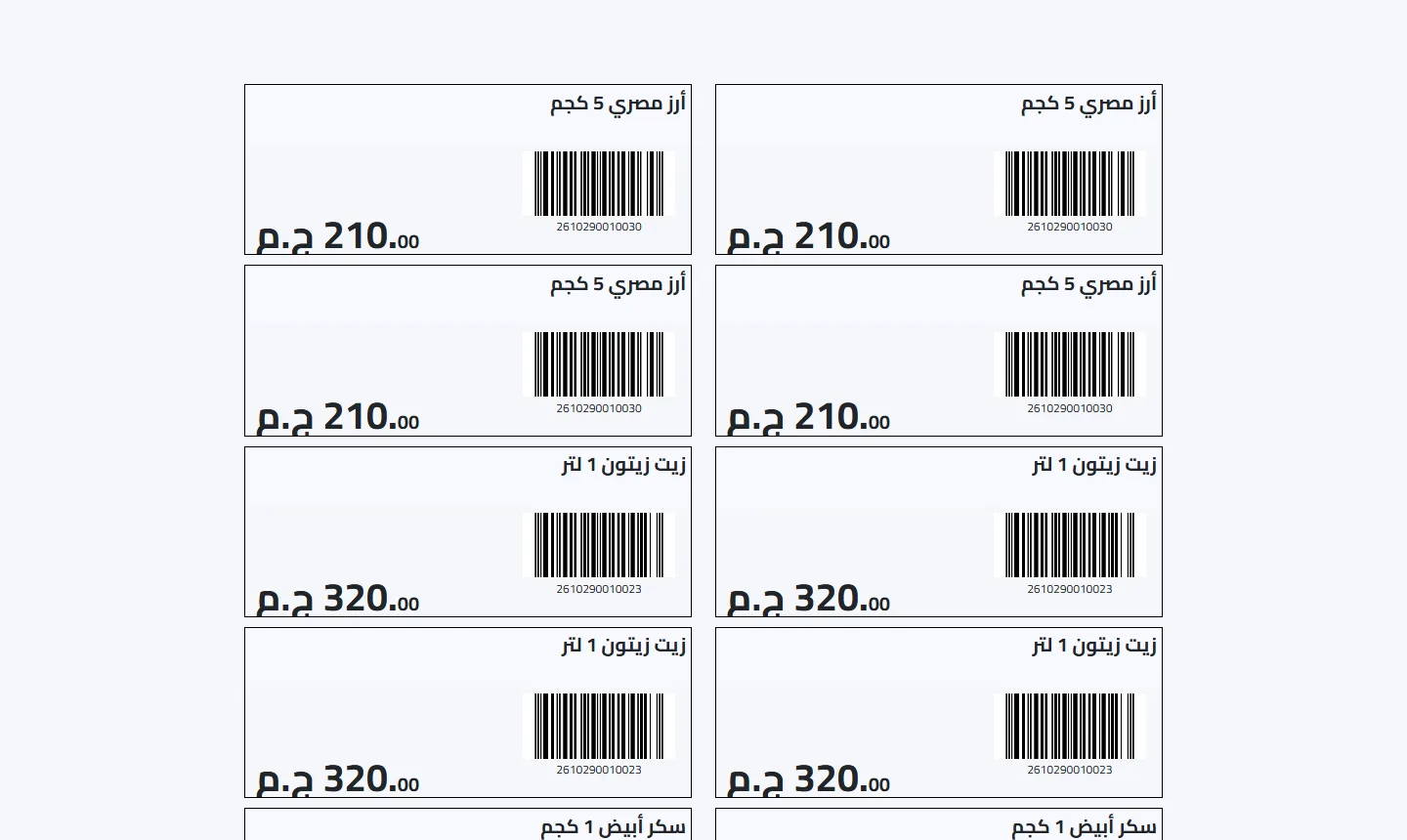
If you move a lot of goods, a thermal label printer saves paper and time; the system prints for it in ZPL, and for small Dymo printers too. Our advice: start with A4 sheets and move to a thermal printer when printing labels has become a daily job.
What should I do tomorrow morning?
Pick one category only, your best seller. Give it a serial start, generate barcodes for its products, print one A4 sheet and stick the labels on. Scan at the till for a full day. If the day passes with nobody searching for names, move to the next category.
This is part of inventory in Intagya ERP, working with the point of sale, receipts and stock counts on the same data. The steps with pictures are in the user guide.
Read the barcode steps with pictures in the user guide
FAQ
Does an old product's barcode change if I press “Generate barcode”?
No. The action only gives a barcode to products that have none, and leaves any existing barcode as it is.
Can two products end up with the same barcode?
No. Before giving a number, the system checks that no other product uses it, archived products included.
Do services get a barcode?
No. The automatic barcode is for goods only, the things you store and put a label on.
Can I switch the automatic barcode off?
Yes. If all your goods arrive with the supplier's barcode, ask support to switch it off; the “Generate barcode” action and printing stay available.
Is this your business?
Want to see IntagyaERP on your own workflow?
Book a demo, tell us how your business runs, and watch the system handle a real scenario from your company.
Book a demo